Get started as an organization
The Organization Portal at org.thingslinker.com is where your company sets up its products, creates devices, ships firmware updates and supports the people who use your devices.
Create your organization account
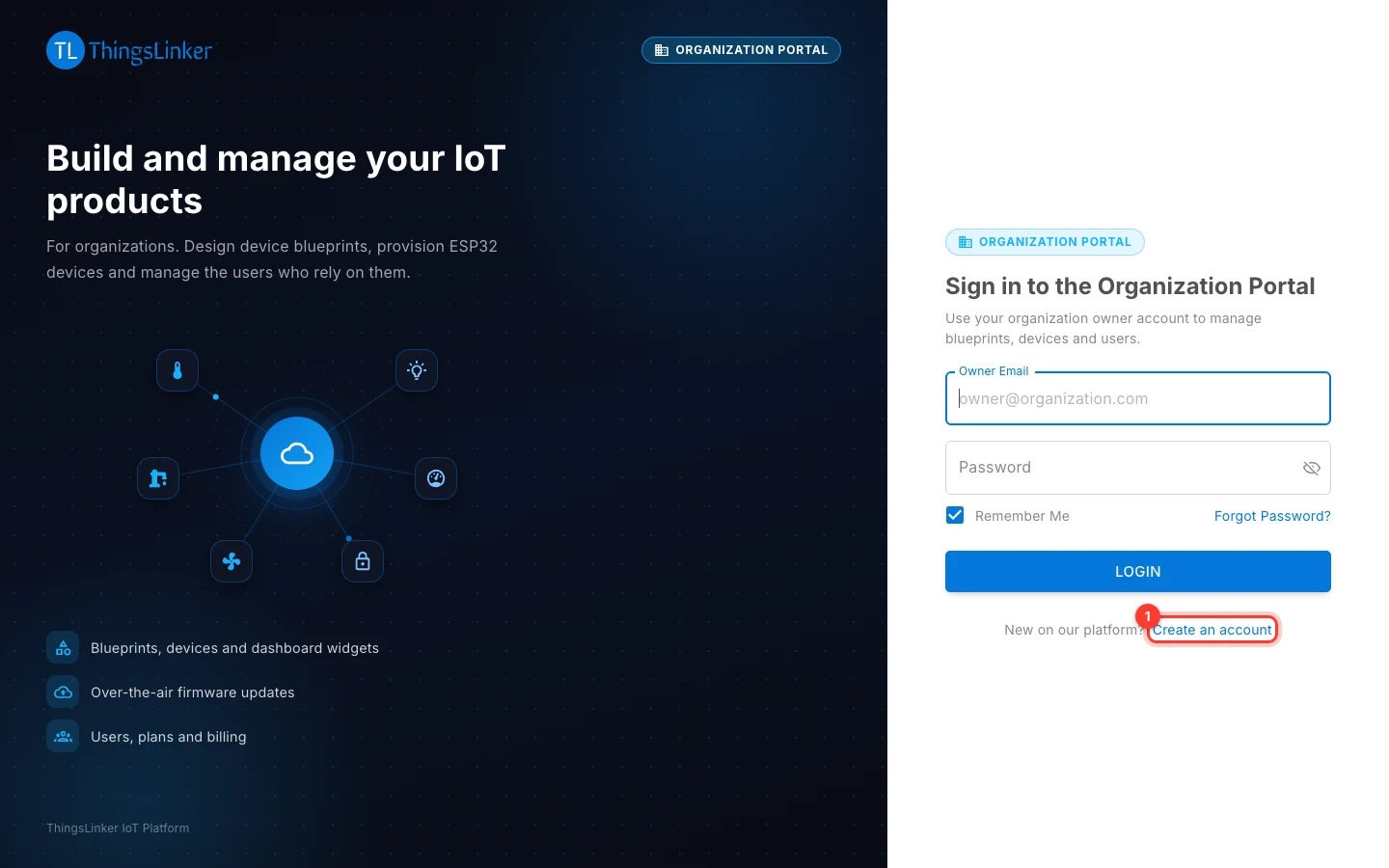
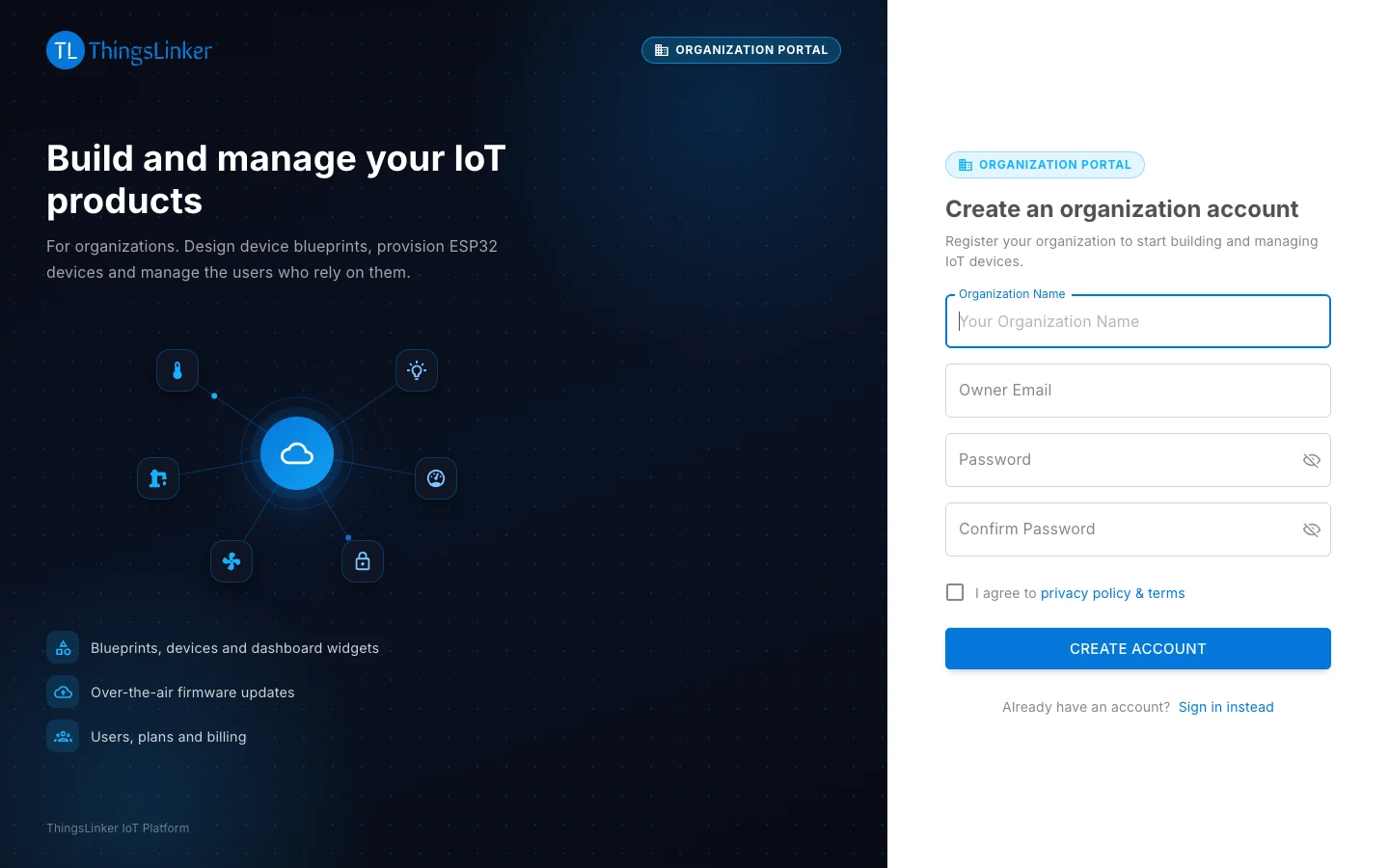
- Go to org.thingslinker.com and choose Create an account.
- Enter your Organization Name, the Owner Email (the address you will sign in with) and a Password, and repeat the password.
- We email a 6-digit verification code to the owner email. Enter it on Verify your email. The code is valid for 10 minutes; use Resend if it does not arrive, and check your spam folder.
- Once verified, you choose a plan. See Choose a plan.
If ThingsLinker created your organization for you, you receive an email titled "You've been invited to your organization on ThingsLinker". Open the link in it, Set your password, and continue with choosing a plan. Each invitation link works once.
Choose a plan
Your plan sets how many devices you can create. On Choose Your Plan:
- The free plan lets you try the platform for one month. Each organization can use it only once.
- Paid plans are billed monthly or annually and paid securely through Cashfree.
You can change plans later; see Subscription and billing.
Sign in
Sign in at org.thingslinker.com with the Owner Email and password. Tick Remember Me to stay signed in on that computer.
Forgot your password?
- On the sign-in page choose Forgot Password?
- Enter the Owner Email. We email a 6-digit code.
- Enter the code with your new password, twice.
The code is valid for 10 minutes and can be used once. After 5 wrong codes it stops working and you need to request a new one.
What to do next
A typical first setup takes four steps:
- Create a blueprint for your product.
- Design its dashboard: what customers see and control.
- Add devices under it. Each one starts with the blueprint's dashboard.
- Set up the hardware with each device's credentials, and give customers the device's bar code so they can add it to their account.
The blueprint's page shows these four steps and what is still to do. For a complete walkthrough with a real board, see Your first device.