Firmware updates (OTA)
OTA / Firmware updates the firmware on your devices in the field, without a cable. You upload the new firmware, choose the devices and start a shipment. Devices hear about it at once (even ones that are offline hear it when they reconnect), install it and restart into the new version.
Devices only update if their firmware turns it on. With the ThingsLinker library it is one line, iot.enableOTA(). Your device developer should read OTA firmware updates, which also explains the partition scheme every version must use.
The OTA page
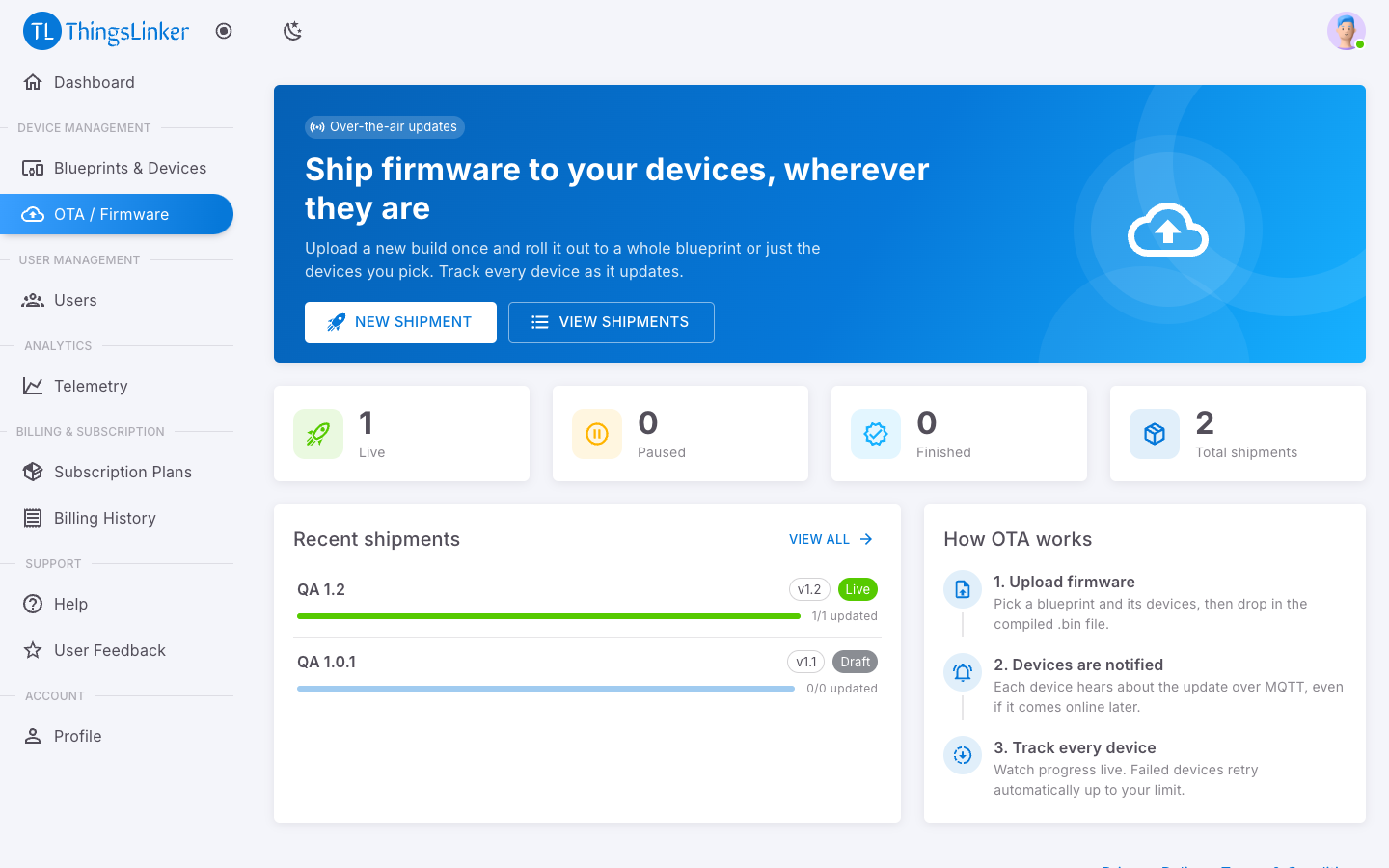
- New Shipment starts a new update.
- The tiles show your Live, Paused and Finished shipments; choose one to see that list.
- Recent shipments shows each shipment's version, status and how many devices are updated, for example
16/25 updated · 2 failed.
Create a shipment
Choose New Shipment. The form goes from top to bottom:
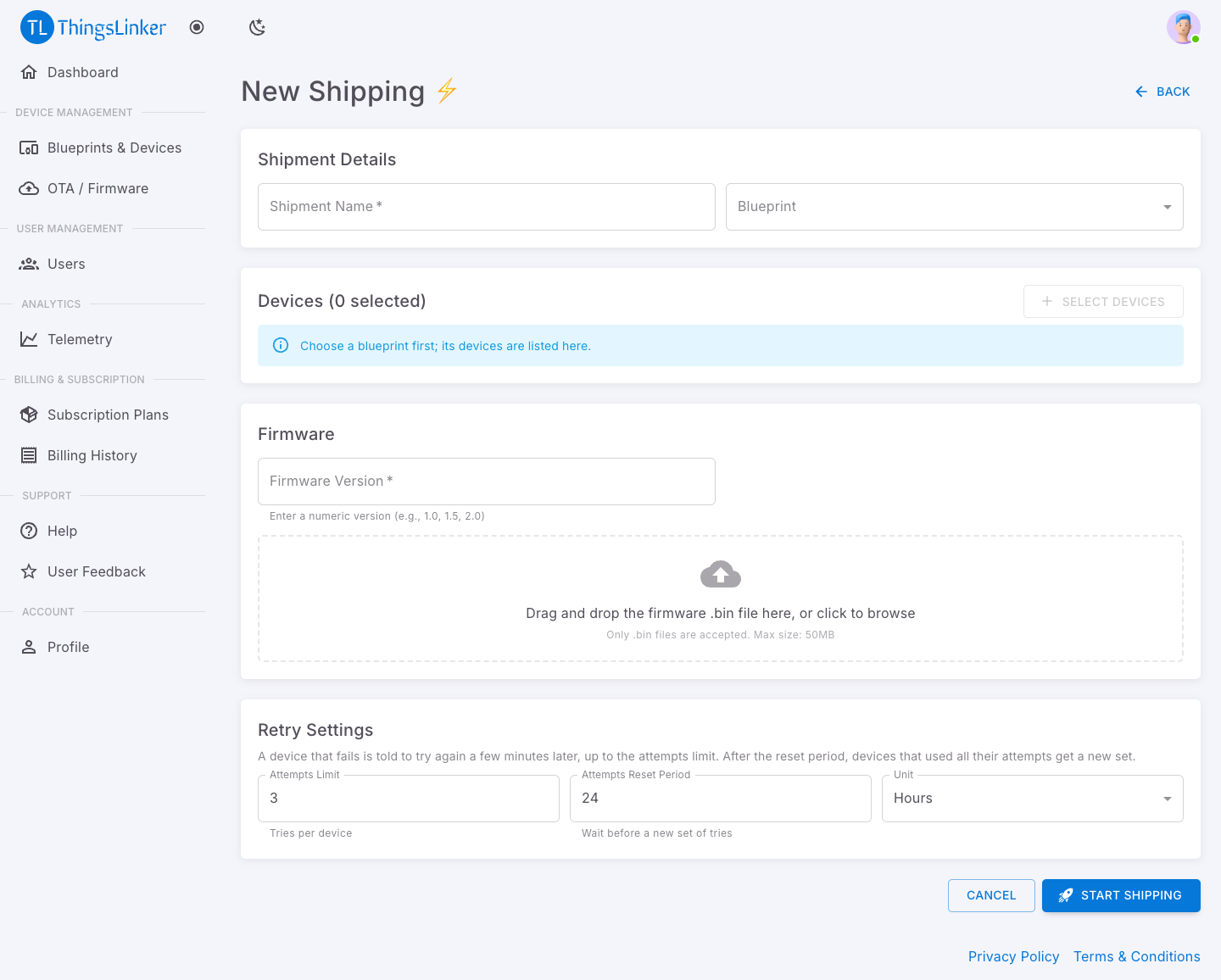
- Shipment Details
- Shipment Name: something you will recognise, for example
v1.1 sensor fix. - Blueprint: the product the firmware is for.
- Shipment Name: something you will recognise, for example
- Devices: choose Select Devices, then pick devices or use Select all. Search by name. Changing the blueprint clears the selection, because devices belong to one blueprint.
- Firmware
- Firmware Version: a number such as
1.1or2.0. Raise it with every release. - The firmware file: drag the
.binfile onto the dashed area, or click it to browse. Only.binfiles up to 50 MB are accepted. The chosen file shows with its size; Replace or remove it if you picked the wrong one.
- Firmware Version: a number such as
- Retry Settings: see Retries below. The defaults (3 tries, reset after 24 hours) suit most products.
- Choose Start Shipping.
The shipment is saved as a draft: nothing is sent until you start it.
Start and manage shipments
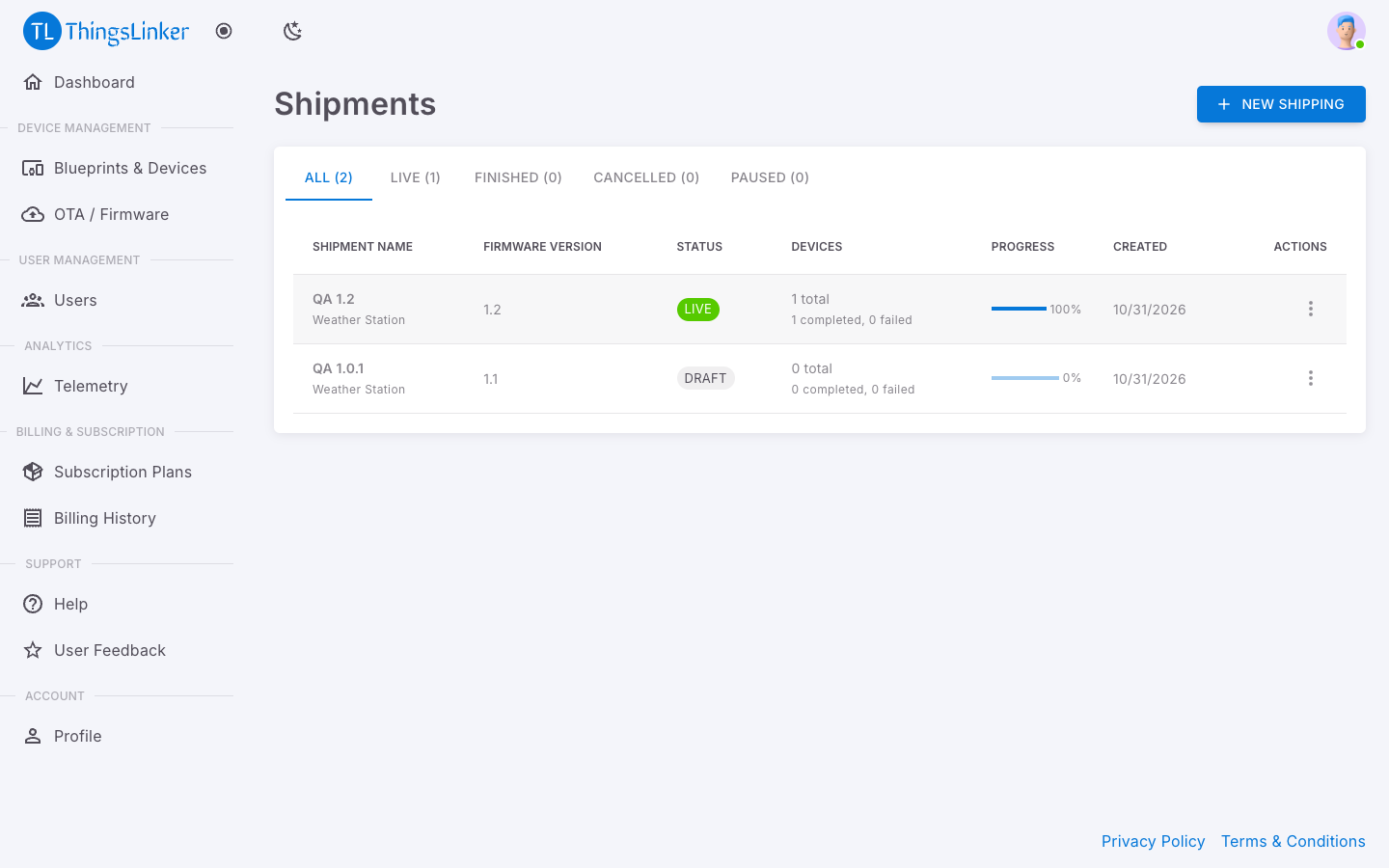
Open View Shipments (or a tile on the OTA page). Shipments are grouped by status.
| Action | What happens |
|---|---|
| Start | The shipment goes Live and its devices are told straight away. |
| Pause | Stops the update for devices that have not started it. Devices already updated stay updated. |
| Resume | Makes a paused shipment live again, and its devices are told again. |
| Cancel | Ends the shipment. Devices not updated yet keep their current firmware. |
| Delete | Removes the shipment and its firmware file. |
Each shipment shows its progress: the share of its devices that have installed the update. When a device finishes, its firmware version changes to the shipment's version.
Retries
Updates can fail: weak WiFi, a power cut, a restart halfway. ThingsLinker retries for you.
| Setting | Meaning |
|---|---|
| Attempts Limit | How many tries each device gets, about 5 minutes apart. |
| Attempts Reset Period and Unit | After a device has used all its tries, how long it waits before it gets a new set. |
Example: with 3 attempts and 24 hours, a device on bad WiFi tries three times about 5 minutes apart. If all fail, it tries again the next day. A device that restarts in the middle of an update counts as a failed attempt, so it is retried rather than marked as done.
Which devices update
- Only devices you selected in the shipment.
- Only active devices, ones using a plan slot. Inactive devices get no updates.
- A device installs the newest live shipment it is in; it is never moved to an older version.
- Offline devices update when they come back online.
Where the firmware is kept
Uploaded firmware is stored on ThingsLinker's servers and is only downloadable through hard-to-guess links given to your devices. Deleting a shipment deletes its firmware file.
Good practice
- Test first: ship to one device on your desk, then a few, then all.
- Keep the same partition scheme for every version (your developer sets it when building).
- Raise the version number each release, so you can see which devices run what.
- Keep your
.binfiles, so you can ship a fix quickly.