Create your account
You need a ThingsLinker account to add devices and use their dashboards. One account works in both places:
- the User Portal in your browser: app.thingslinker.com
- the ThingsLinker app for Android: Google Play (a tour is in The mobile app)
Sign up
In the app
- Open the app and tap Register.
- Enter your Full Name, Email and a Password, and repeat the password. Phone number is optional.
- Tap Create Account. We email you a 6-digit code.
In the User Portal
- Go to app.thingslinker.com and choose Create an account.
- Enter your Full Name, Email and a Password, and repeat the password. You don't choose a username: ThingsLinker makes one from your name.
- Accept the Terms & Conditions and create the account. We email you a 6-digit code.
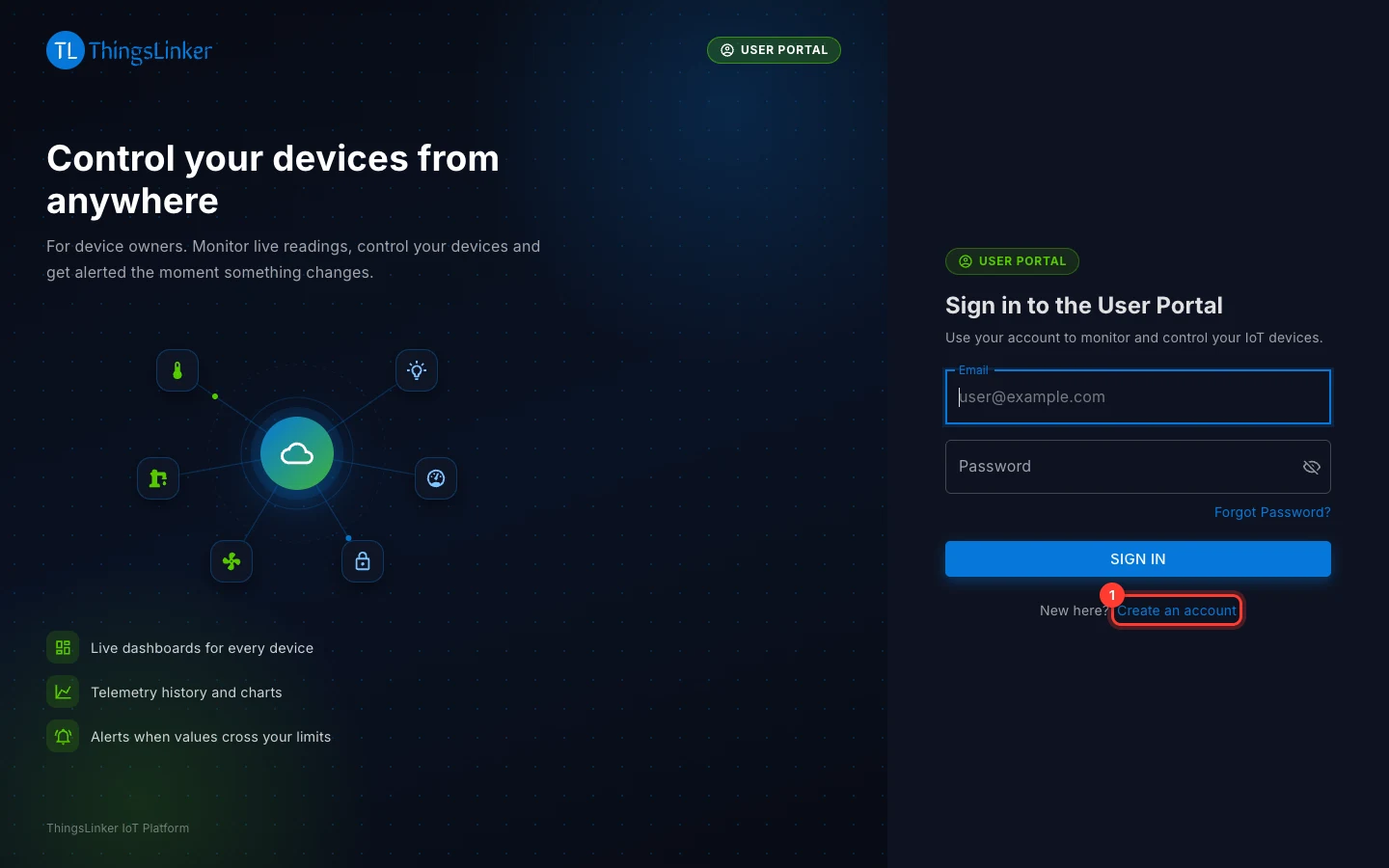
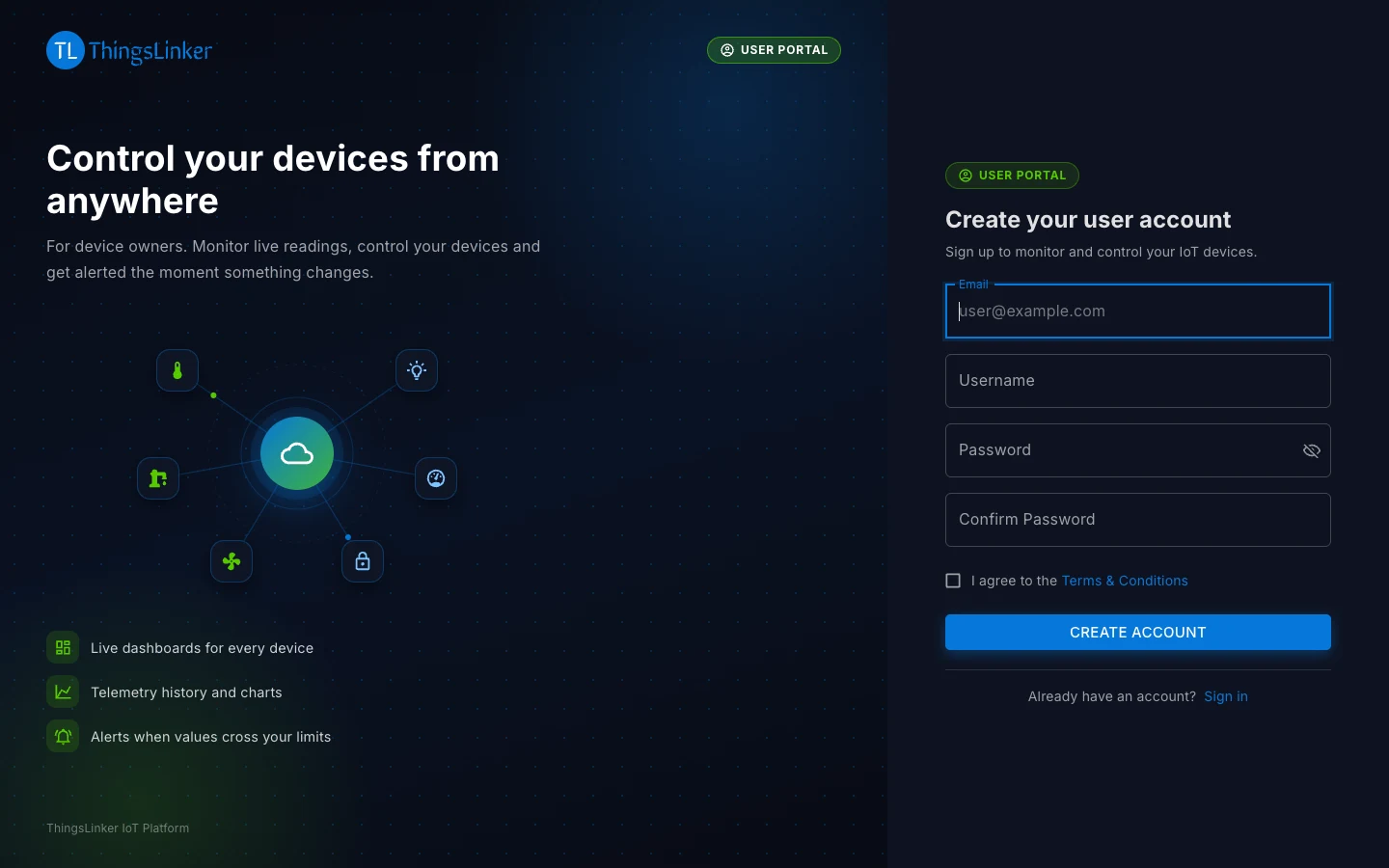
Use at least 8 characters with at least one capital letter and one number. Very common passwords, passwords made only of numbers, and passwords too close to your name or email are refused.
Verify your email
- Open the email from ThingsLinker and find the 6-digit code.
- Enter it on the Verify your email screen.
The code is valid for 10 minutes. If it has expired or did not arrive, use Resend to get a new one, and check your spam folder. After 5 wrong codes the code stops working and you need to request a new one.
Sign in
Sign in with your email and password, in the app or at app.thingslinker.com. The app keeps you signed in until you sign out.
Forgot your password?
- On the sign-in screen choose Forgot Password?
- Enter your account's email address. We email you a 6-digit code.
- Enter the code and choose a new password.
- Sign in with the new password.
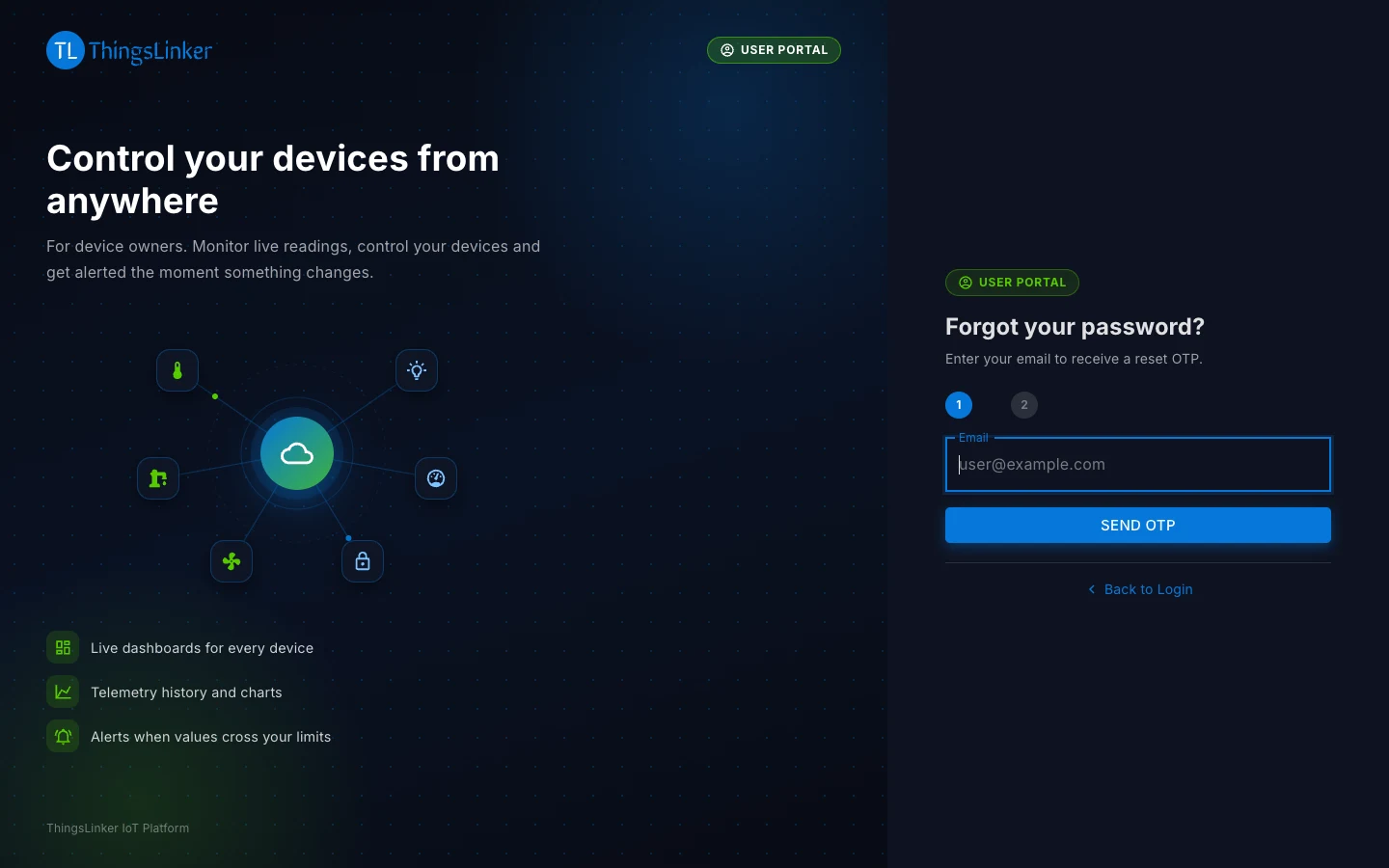
The code is valid for 10 minutes and can be used once. If the email does not arrive within a few minutes, check your spam folder, then request a new code.