Using widgets
Widgets come in three kinds:
- Controls send something to the device when you use them: switches, buttons, sliders and so on.
- Displays show what the device reports. They are marked Read only.
- Summaries work out something from the device's other widgets, such as a total or a table. They need nothing from you.
Which widgets a device has, and what each one controls, is decided by the company that supplied it. If you are unsure what a control does, ask them.
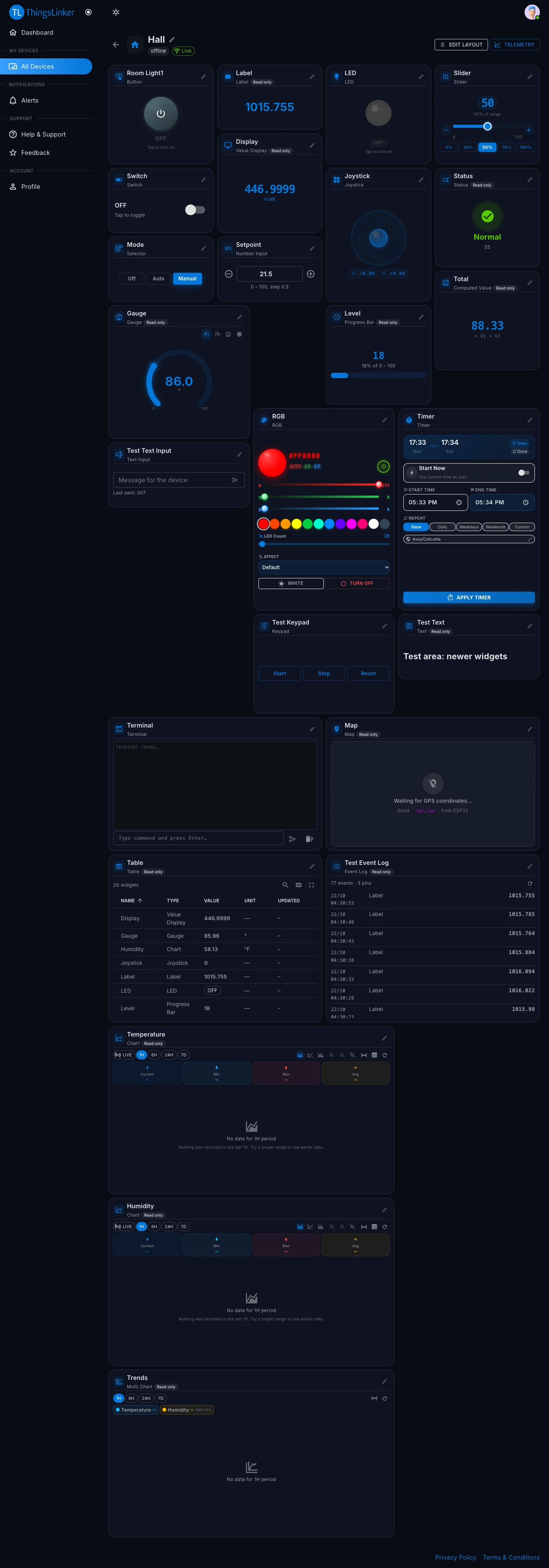
Controls
| Widget | How to use it |
|---|---|
| Switch | Tap to turn on or off. |
| Button | Tap to switch between its two states, for example ON and OFF. |
| LED | Shows on or off. On many devices you can also tap it to switch the output. |
| Slider | Drag the handle, use − and +, or tap a quick setting such as 25% or 50%. The value is sent when you let go. |
| Selector (or Dropdown) | Pick one of the listed options, for example Off, Auto or Manual. |
| Number Input | Type a number or step it with − and +. The widget shows the allowed range and step, for example "0 – 100, step 0.5". |
| Text Input | Type a message for the device and send it. The widget shows the last text you sent. |
| Keypad | Tap a button, for example Start or Stop, to send that command. |
| RGB (colour light) | Choose a colour from the colour wheel, the preset colours or the R, G and B sliders. You can also set the LED Count, pick an Effect, choose White, or Turn Off. |
| Timer | Switch an output on and off on a schedule: see Timer below. |
| Joystick | Drag the knob in any direction. The device receives the position as X and Y values. |
| Terminal | Type a command and press Enter to send it. Messages from the device appear in the same window. Clear empties the window. |
Controls need a connection to ThingsLinker. If your phone or computer is offline, the dashboard tells you it cannot control the device.
Timer
A Timer turns something on at a start time and off at an end time, even when the app is closed and your computer is off. ThingsLinker's servers send the commands at the right time.
- Set the Start time and End time, or choose Start Now to begin straight away.
- Choose how often it repeats: Once, Daily, Weekdays (Monday to Friday), Weekends (Saturday and Sunday) or Custom days.
- Check the time zone shown on the widget, for example Asia/Kolkata.
- Choose Apply Timer.
While a timer is active, the widget shows Timer Running.
Displays
| Widget | What it shows |
|---|---|
| Value Display | The latest value: a number, text or on/off. |
| Label | A value or short text from the device, for example a pressure or a message such as "Door open". |
| Gauge | A number on a dial between the widget's minimum and maximum. Use the small buttons on the widget to switch between dial styles. |
| Progress Bar | A number as a filled bar, with the percentage of its range. |
| Status (or Status Indicator) | The device's value turned into a named state with a colour, for example Normal, Warning or Fault. |
| Chart | The value over time. See Charts and history. |
| Map | The device's location as a pin. Switch between Street, City and Region zoom, copy the coordinates, or open the location in Google Maps. |
| Text (or Note) | A fixed note from the company that supplied the device, for example instructions. |
Summaries
| Widget | What it shows |
|---|---|
| Computed Value | A result worked out from other widgets, for example a total of two readings or an average. The formula is shown under the value. |
| Multi Chart | Several readings plotted together on one chart, for example temperature and humidity. |
| Event Log | A list of the latest changes on the device, newest first, with the time of each. |
| Table (or List) | All the device's widgets in one table, with each value, its unit and when it last changed. You can search and sort it. |
When the device is offline
What happens to a command you send while the device is offline depends on the widget:
| Widget | When the device comes back online |
|---|---|
| Switch, Button, LED, Slider, Selector, Number Input, RGB, Timer, Joystick | It receives your last setting, so it returns to what you chose. |
| Keypad, Text Input | Nothing. Each press or message is sent once, so it is lost if the device was offline. Send it again when the device is online. |
| Terminal | It receives the last line you typed. |
Displays keep showing the last value the device sent until it reports again.