Add a device
Adding a device does two things at once: it links the device to your account, and it gives the device your WiFi network name and password over Bluetooth so it can go online.
Before you start
- The device's code. You need its barcode (13 digits) or its auth token. Both are on the device's label or packaging; the label may also carry a QR code.
- Your WiFi name and password. The device needs a 2.4 GHz network. ESP32 devices cannot join 5 GHz networks.
- The device switched on, close to you, and in setup mode. A new device starts in setup mode on its first power-up. If it has been set up before, ask your device supplier how to put it back into setup mode (many devices do this with a long press of a button).
- Bluetooth on on your phone or computer.
Add a device with the app
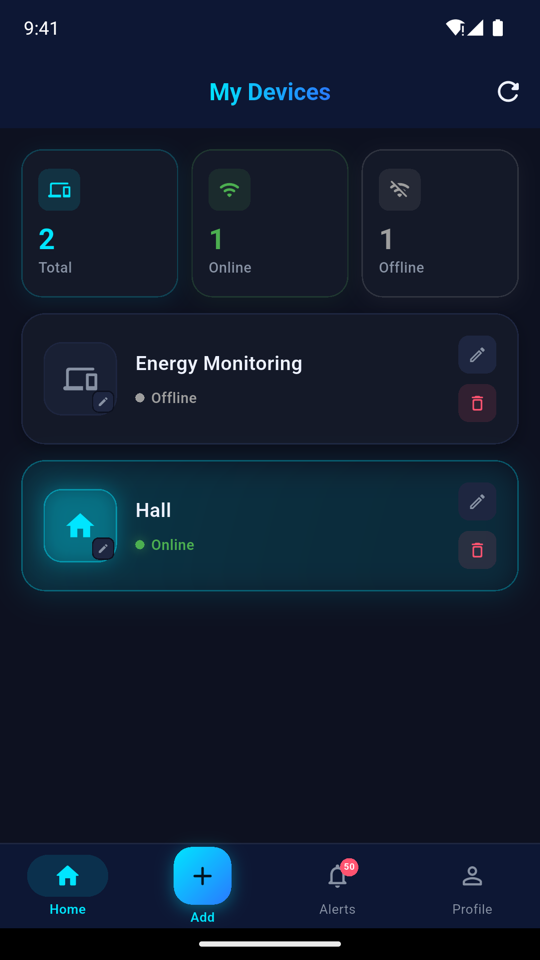
- On the Home screen tap Add Device.
- Scan the QR code on the device's label. If you cannot scan it, tap Enter Manually and type the 13-digit barcode.
- ThingsLinker checks the code straight away. If the device cannot be added, you see why and nothing is sent to the device (see If the device cannot be added).
- Enter your Wi-Fi Network Name (SSID) and Wi-Fi Password.
- Allow Bluetooth and location access if your phone asks. Android needs location permission to search for Bluetooth devices; ThingsLinker does not record your location.
- The app finds the device nearby, sends it your WiFi details and links it to your account. Keep the phone close to the device until it finishes.
- The device restarts, joins your WiFi and appears on your Home screen. It shows Online within a minute or so.
The app remembers the WiFi name and password on your phone, so you do not have to type them again for your next device.
Add a device in the User Portal
Setting up over Bluetooth from a browser needs Google Chrome or Microsoft Edge, on a computer or an Android phone. Other browsers, and all browsers on iPhone, do not support Web Bluetooth.
The Add Device via BLE window walks you through five steps: Device Code, BLE Connect, WiFi Setup, Provisioning and Done.
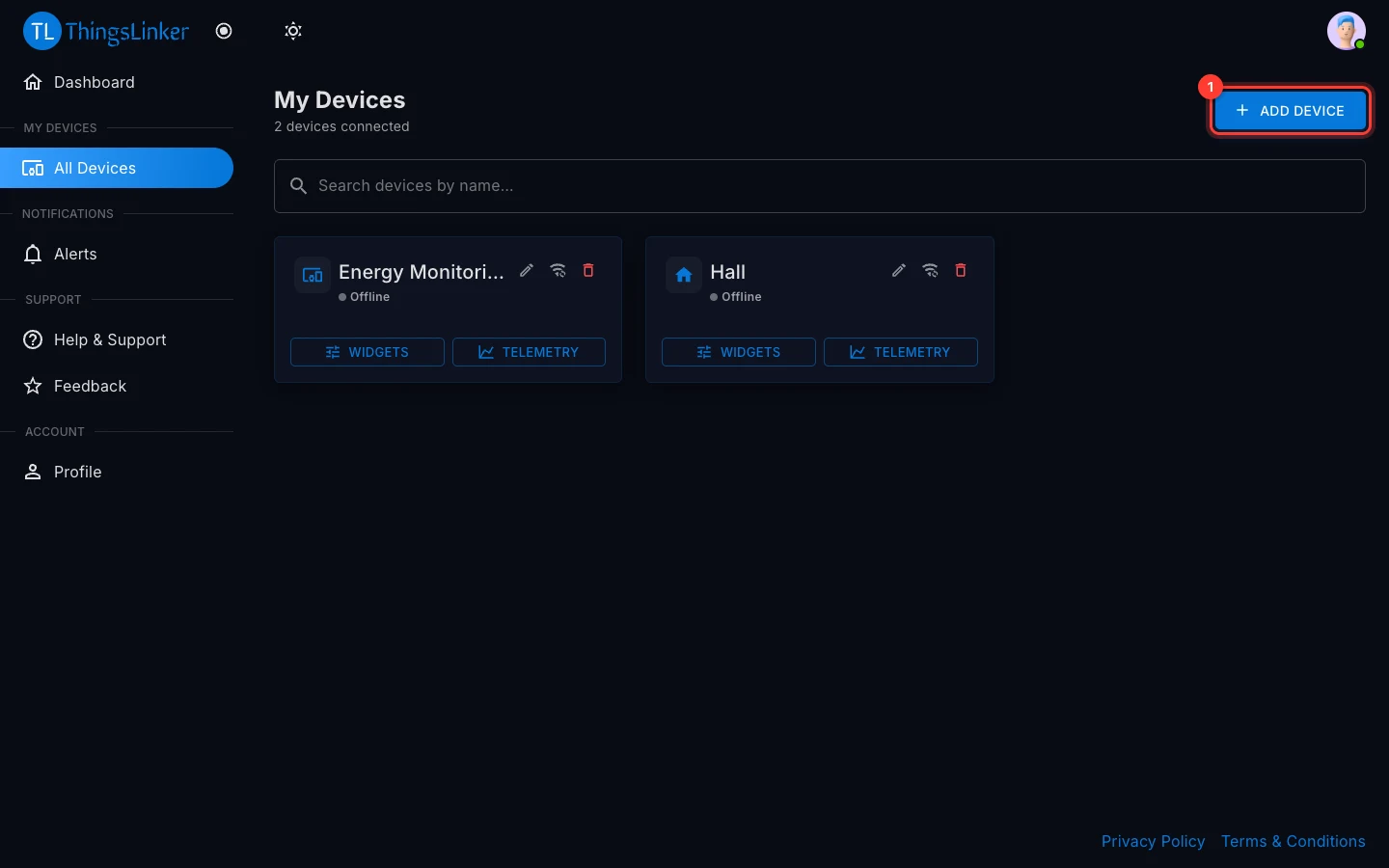
- Go to All Devices and choose Add Device.
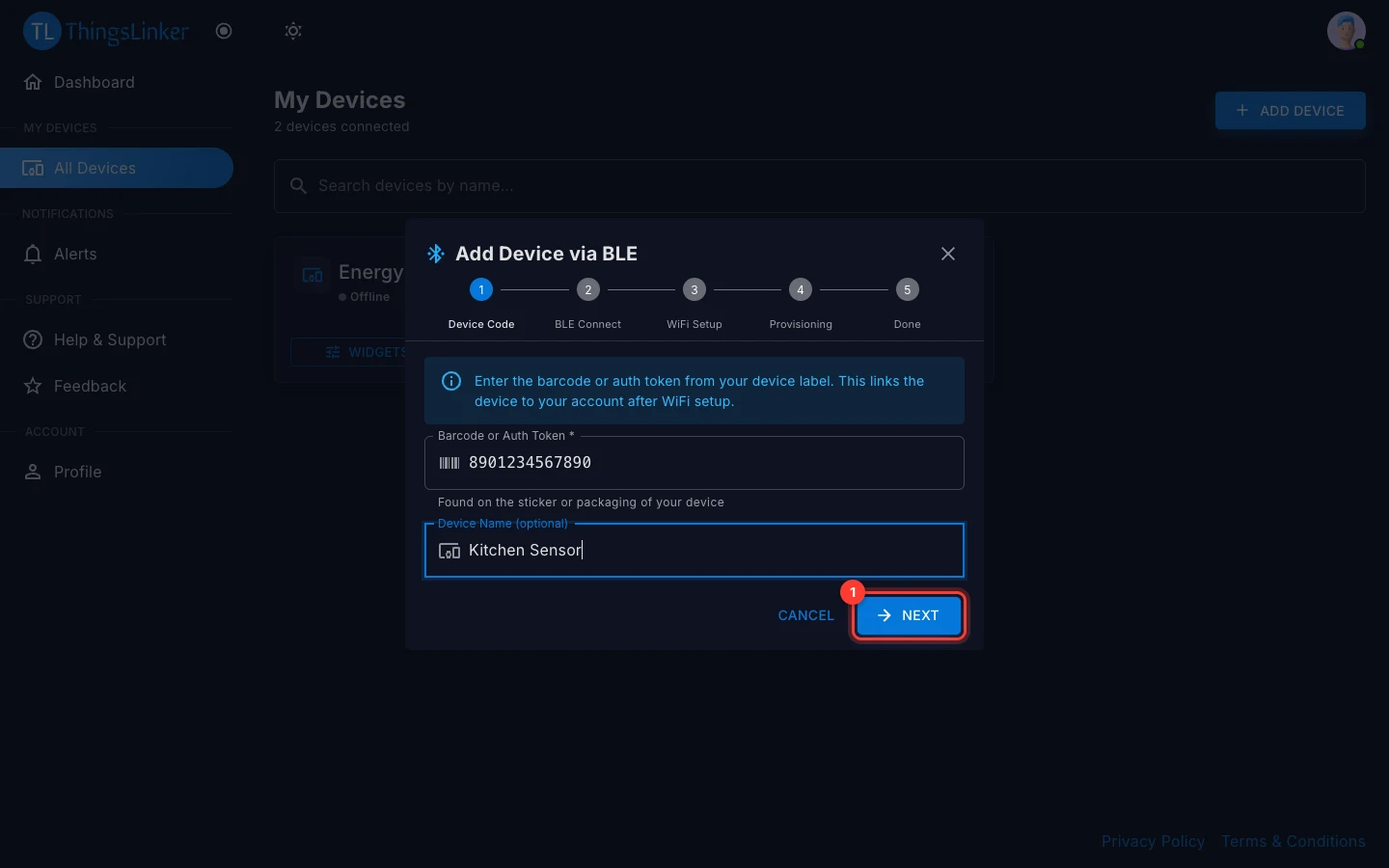
- Device Code. Enter the Barcode or Auth Token from the device's label. You can also give it a Device Name, for example "Kitchen Sensor"; you can change the name later. Choose Next. ThingsLinker checks the code before anything else happens.
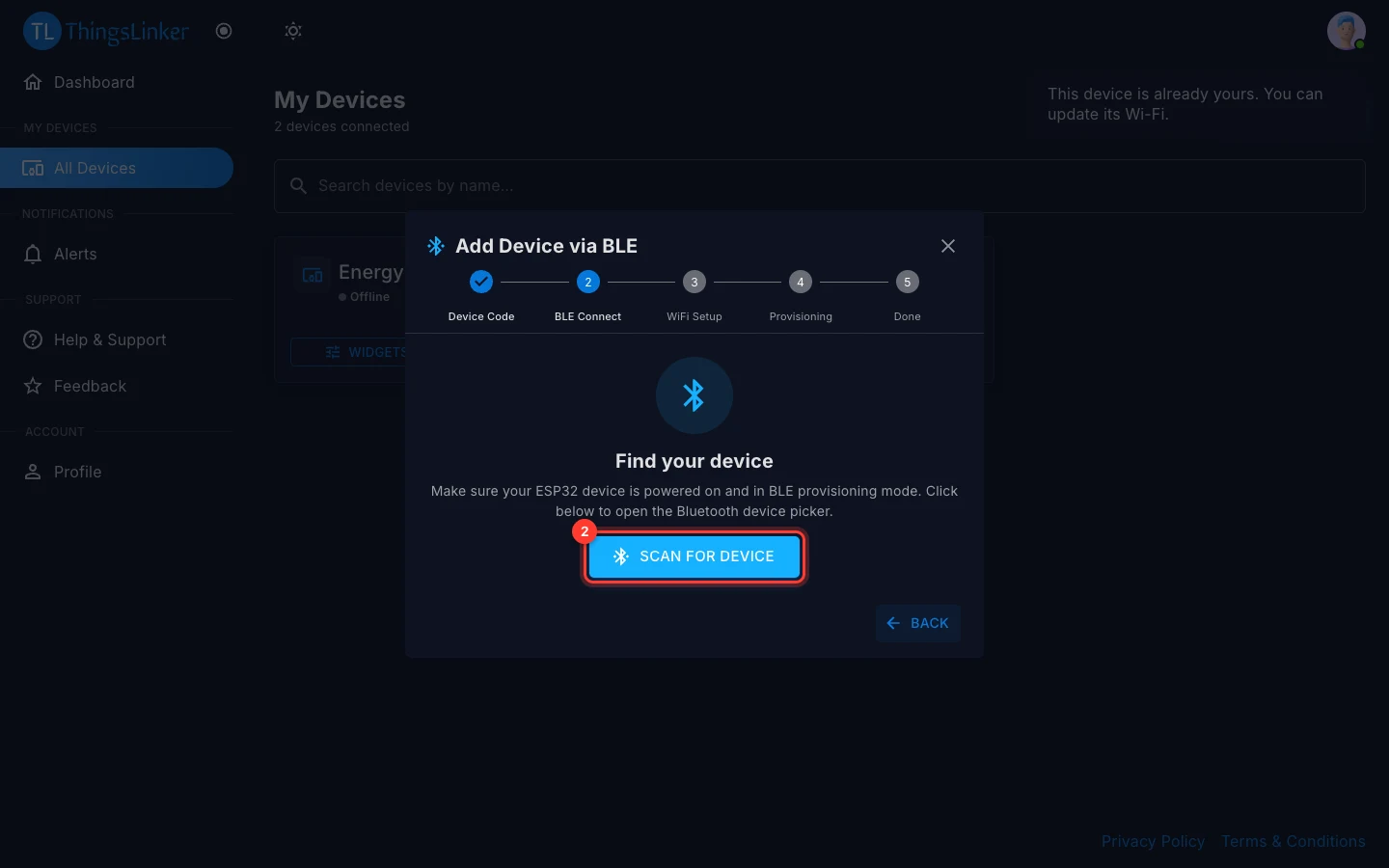
- BLE Connect. Make sure the device is powered on and in setup mode, then choose Scan for device. Your browser lists the Bluetooth devices nearby; pick yours (its name starts with
ThingsLinker_unless your supplier changed it) and choose Pair.
- WiFi Setup. Enter your WiFi Network Name (SSID) and WiFi Password (leave the password empty for an open network).
- Provisioning. Keep the page open while the device receives the details and joins your WiFi.
- Done. When you see Device Added!, the device is linked to your account and is connecting to the cloud. It shows as online shortly. Choose View Widgets to open its dashboard, or Add Another.
If the device cannot be added
If the code is wrong or the device belongs to someone else, a message tells you why and nothing is sent to the device:
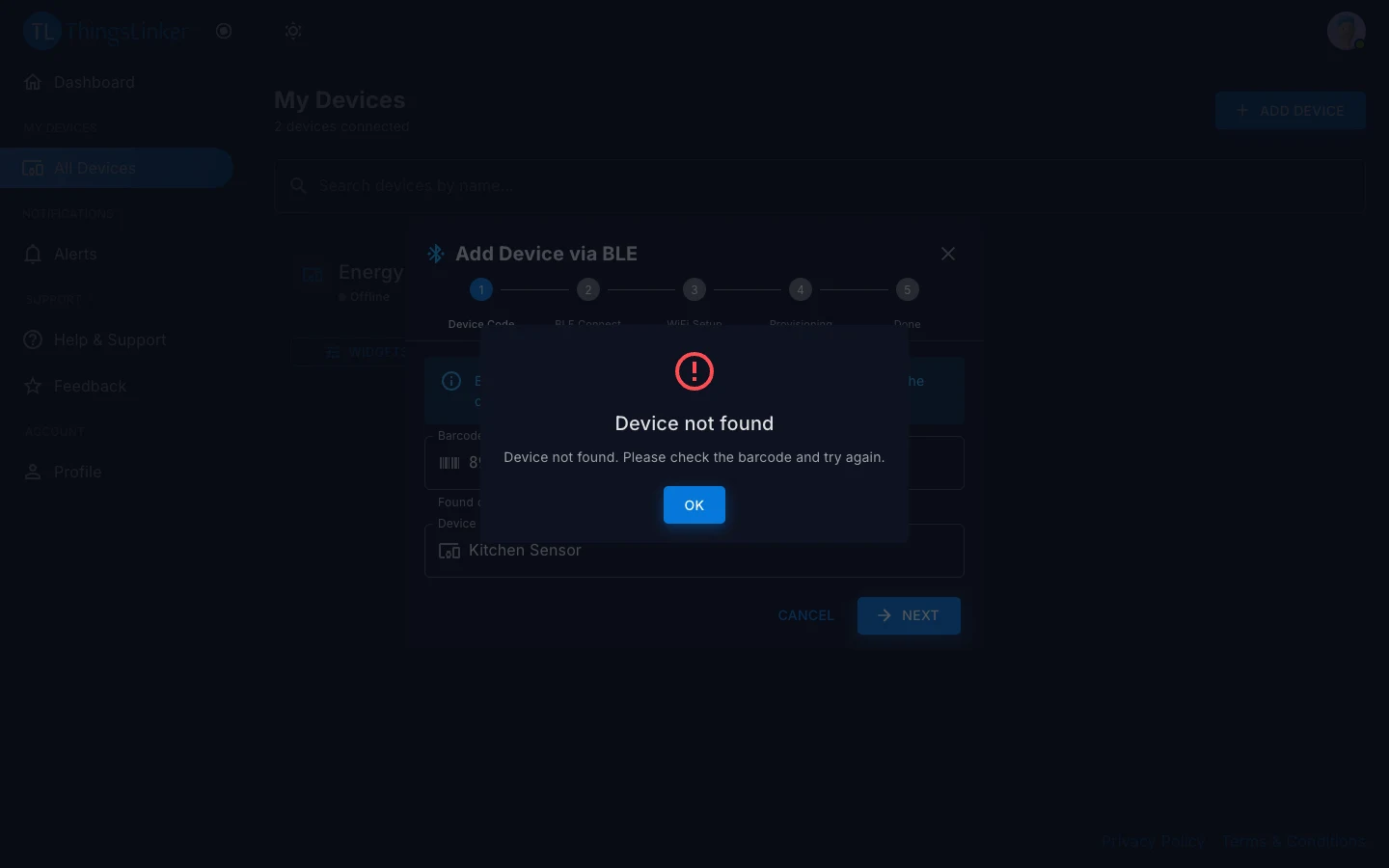
| Message | What it means | What to do |
|---|---|---|
| Device already registered | The device is linked to someone else's account. A device can belong to one account at a time. | Ask the current owner to remove it from their account. If you bought it new, contact the company that supplied it. |
| Device not found | The code does not match any device. | Check the code on the label and type it again. |
| This device is already yours | It is already in your device list. | You can carry on to give it new WiFi details, for example after changing your router. |
| WiFi connection failed | The device could not join the network. | Check the network name and password, and that the network is 2.4 GHz. Then try again. |
| The app does not find the device | The device is not in setup mode, is out of range, or Bluetooth is off. | Move closer, check Bluetooth is on and the device is in setup mode, and try again. |
Change a device's WiFi
If you change your router or WiFi password, give the device the new details:
First the device must forget its old network and go back into setup mode:
- App: open the device, tap WiFi, then Reset.
- User Portal: on All Devices, choose the Change WiFi button on the device's card, then Reset device WiFi.
- On the device: hold its reset button for 3 seconds (on most devices this is the BOOT button; ask your supplier if you are not sure).
The app and the portal can only reset a device that is online. If it is offline, for example because your old router is gone, use the button on the device.
The device restarts into setup mode within a few seconds. Then give it the new network:
- User Portal: in the same Change WiFi window, choose Scan for device, then follow steps 4 to 6 above.
- App: tap Set up WiFi and scan the device's code. ThingsLinker recognises it as yours and lets you send it new WiFi details.