Your device dashboard
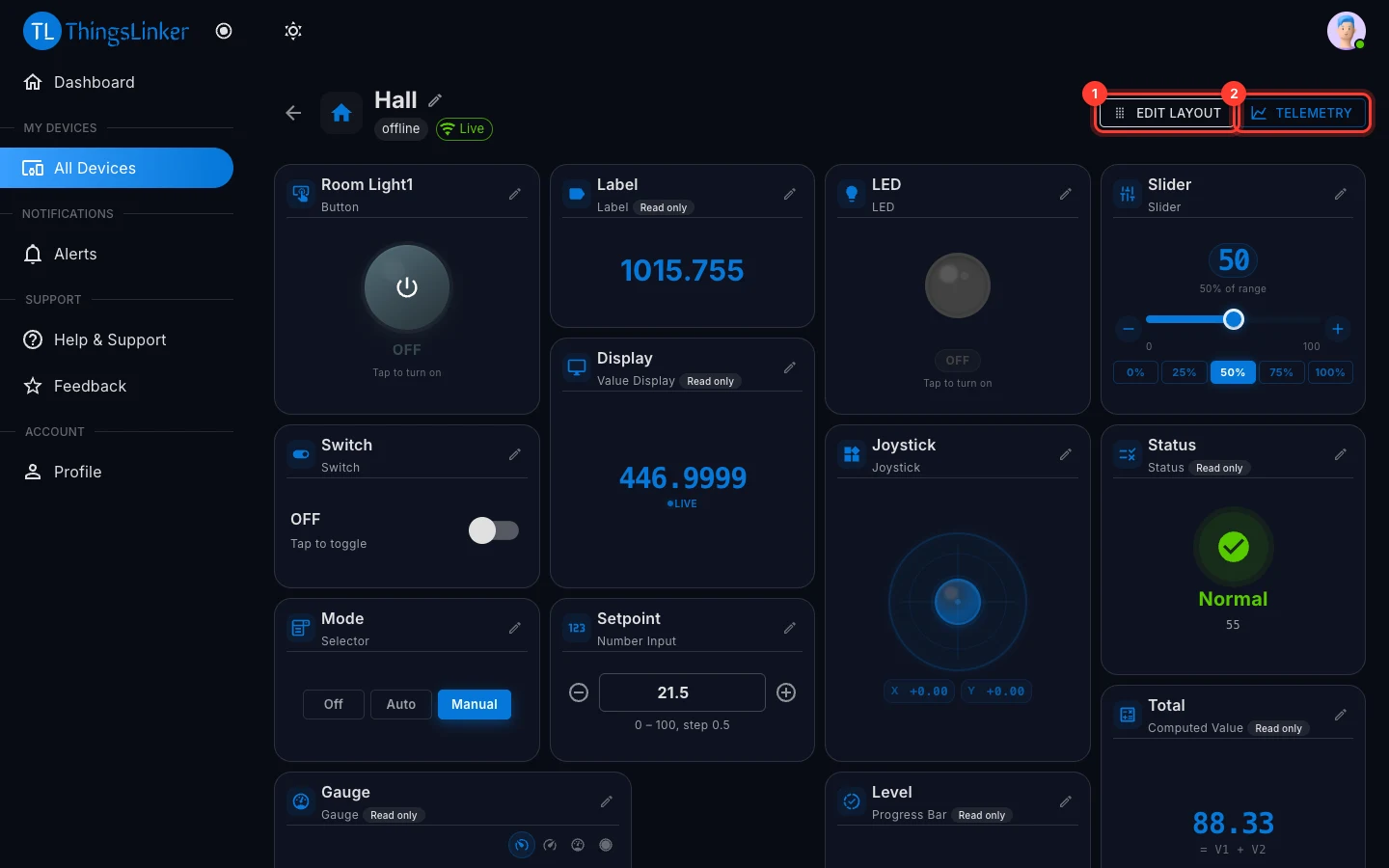
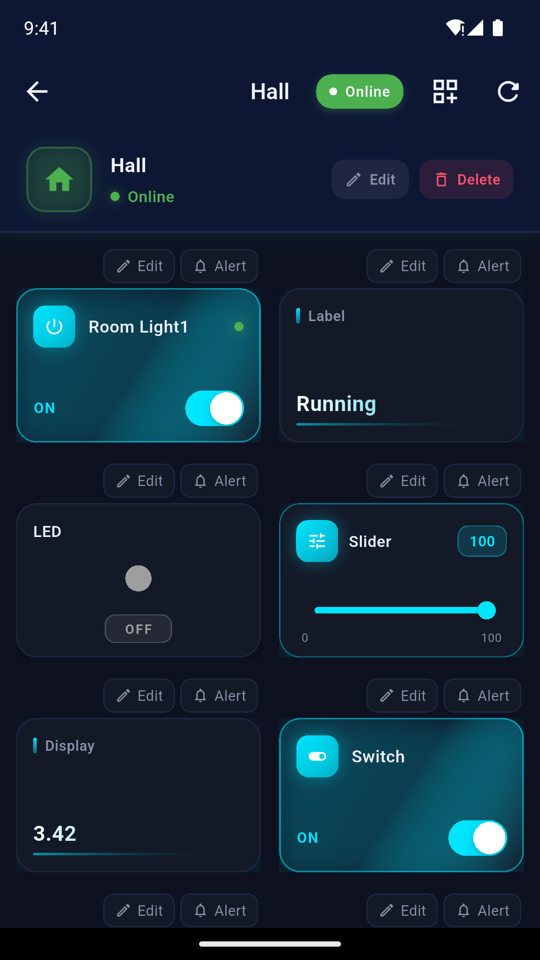
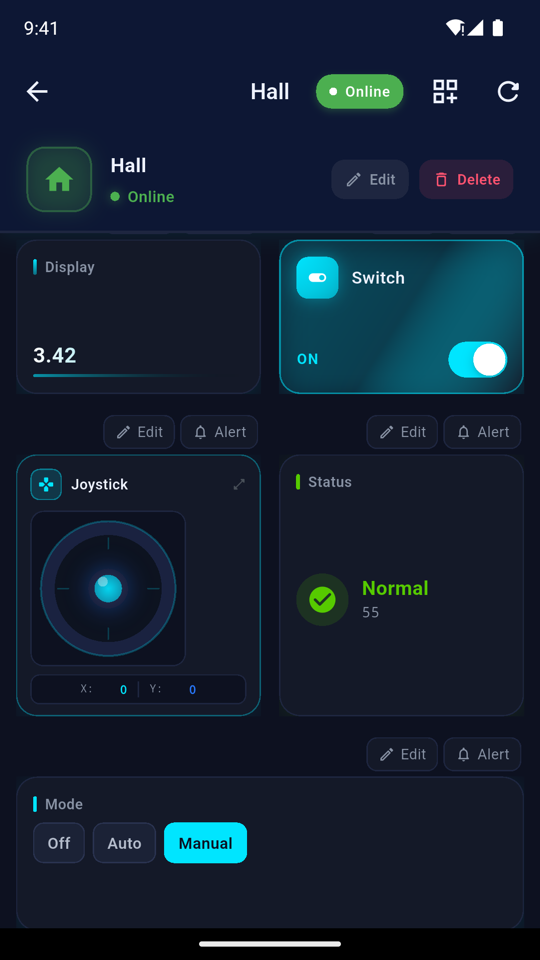
Each device has a dashboard made of widgets: gauges, charts, switches, buttons and more. The company that supplied the device chooses which widgets it has; you use them and arrange them the way you like.
Open a dashboard
- App: tap the device on the Home screen.
- User Portal: go to All Devices and open the device.
At the top you see the device's name and whether it is online. In the User Portal a Live badge shows that the dashboard is receiving updates.
Live values
Values update by themselves as the device sends them, usually within a second. You do not need to refresh.
Some widgets are marked Read only. They show what the device reports, and you cannot change them from the dashboard. Controls such as switches, sliders and buttons send your choice straight to the device. How each widget works is explained in Using widgets.
If a device is offline, its widgets keep showing the last values received.
Arrange the widgets
The arrangement is saved with the device and is the same in the app and the User Portal: change it in one and the other follows.
User Portal
- Choose Edit Layout.
- Drag widgets to move them, and drag a widget's corner to resize it.
- Choose Done to save.
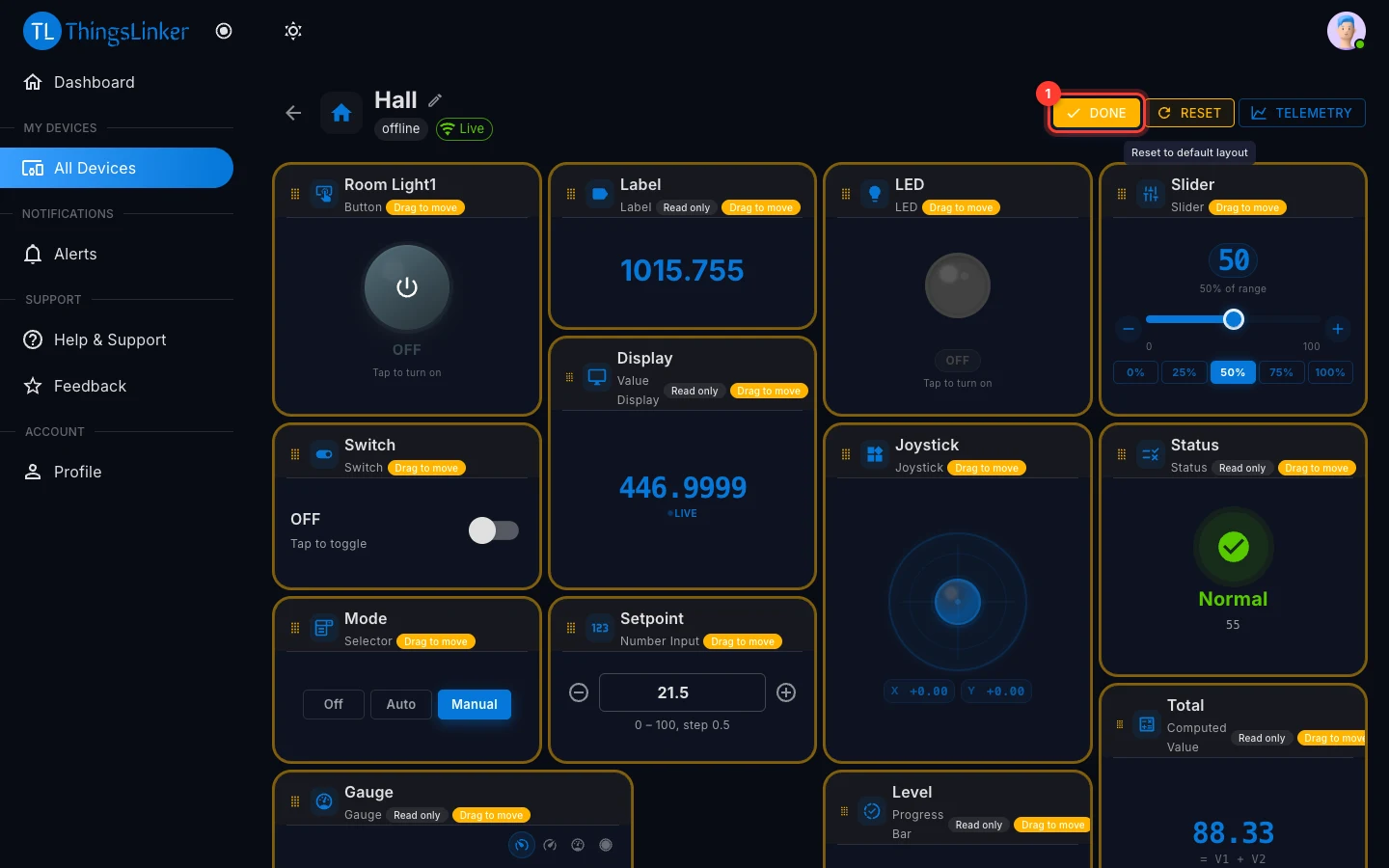
To go back to the original arrangement, choose Reset to default layout.
App
- Tap the Arrange button at the top of the dashboard.
- Drag widgets up and down by their handle to change the order.
- Tap Save order.
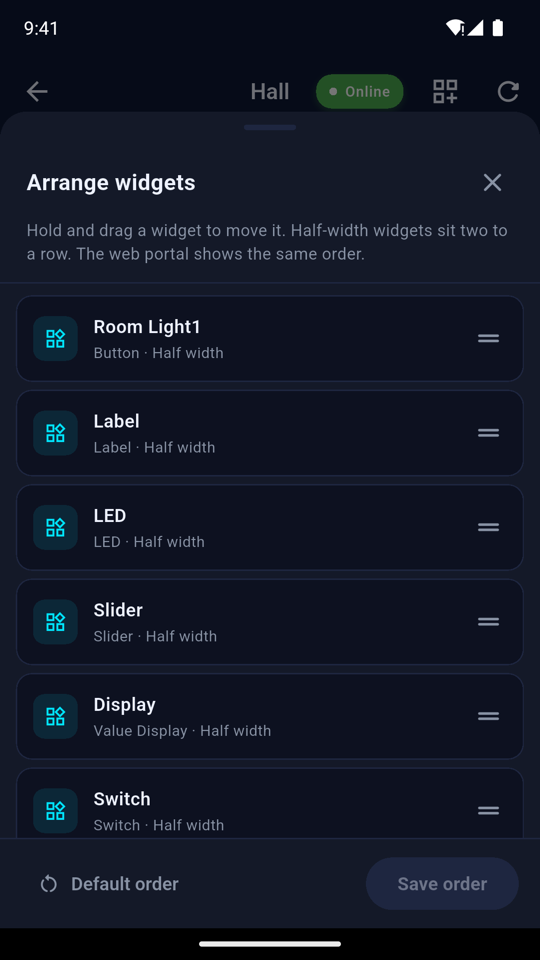
Default order puts the widgets back in their original order. In the app widgets are shown two to a row, and wide widgets such as charts take a full row.
Rename a widget or change its icon
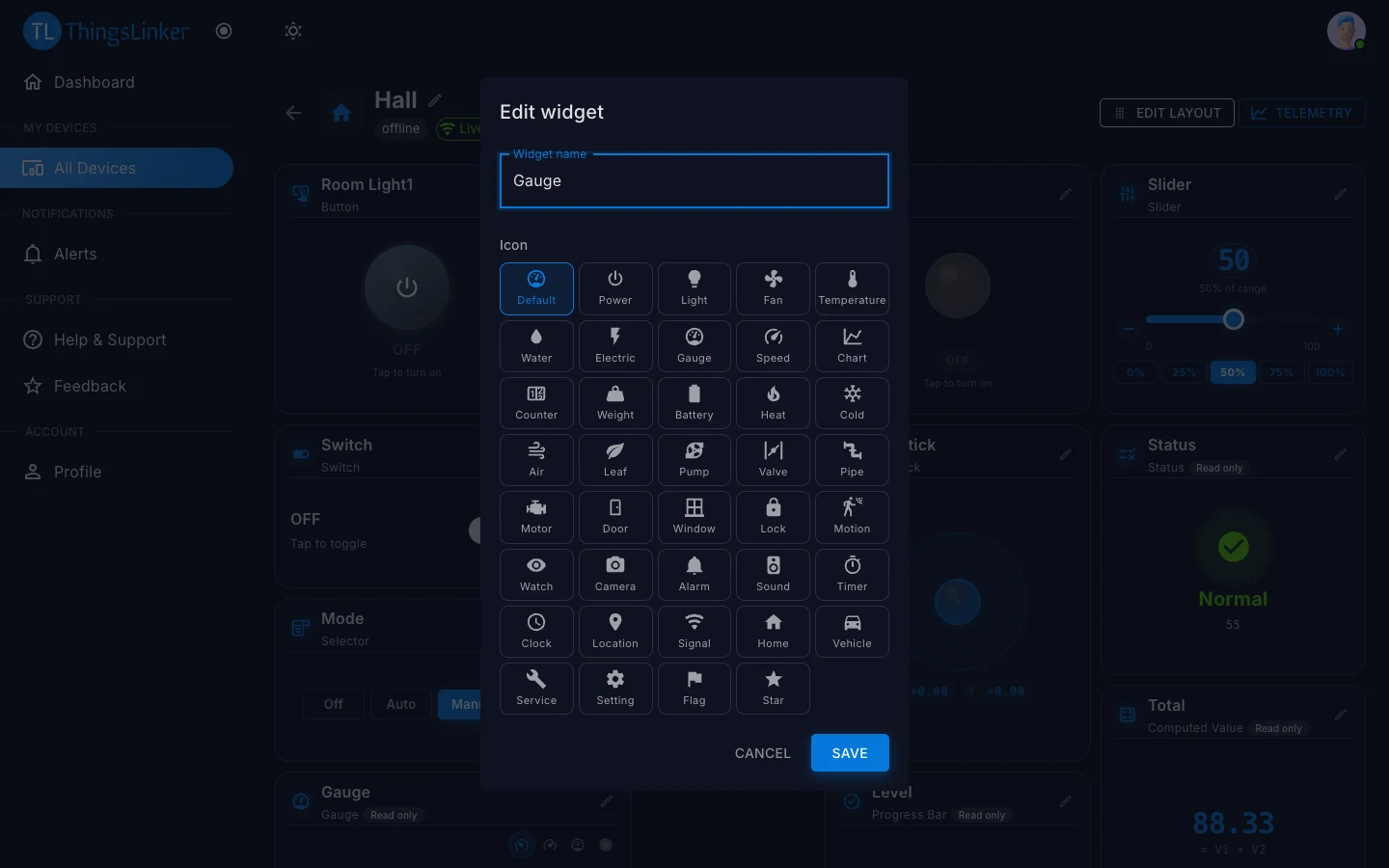
You can give any widget your own name and icon, for example rename "Temperature" to "Living Room" and give it a thermometer icon. The new name and icon are saved with the device, so they also show in the app, the User Portal and to the company that supplied the device.
- App: tap Edit on the widget.
- User Portal: choose the pencil on the widget (Edit name and icon).
See more history
For detailed history of the device's readings, see Charts and history.
No widgets?
If a dashboard says No widgets configured, the company that supplied the device has not set up its widgets yet. Contact them; you can use Help & Support to send them a ticket.