Your first device in 15 minutes
This tutorial takes you from nothing to a working connected product: an ESP32 that sends a temperature reading to a live dashboard and switches an LED from your phone. No IoT experience is needed. Every step says exactly where to click.
What you need
| Item | Notes |
|---|---|
| An ESP32 development board | Any ESP32 DevKit works. Most have an LED on pin 2. |
| A USB data cable | Some cables only charge; use one that carries data. |
| A computer with Arduino IDE 2 | Free from arduino.cc/en/software. |
| An Android phone with Bluetooth, or Chrome/Edge on a computer | To give the device your WiFi details. |
| A 2.4 GHz WiFi network | ESP32 boards cannot join 5 GHz networks. |
You will create two free accounts: an organization account (you, building the product) and a user account (the customer who owns the device). For this tutorial you play both roles.
Part 1: Set up the product in the Organization Portal
1. Create your organization
- Open org.thingslinker.com and choose Create an account.
- Enter your organization's name, your email and a password, and confirm the code we email you.
- Choose a plan. The Free plan (2 devices, one month, once per organization) is enough for this tutorial.
2. Create a blueprint
A blueprint describes one product. Every device you make of that product belongs to it.
- In the menu choose Blueprints & Devices, then New blueprint.
- Name it
My First Sensor, choose ESP32 as the hardware and WiFi as the connection, and save.
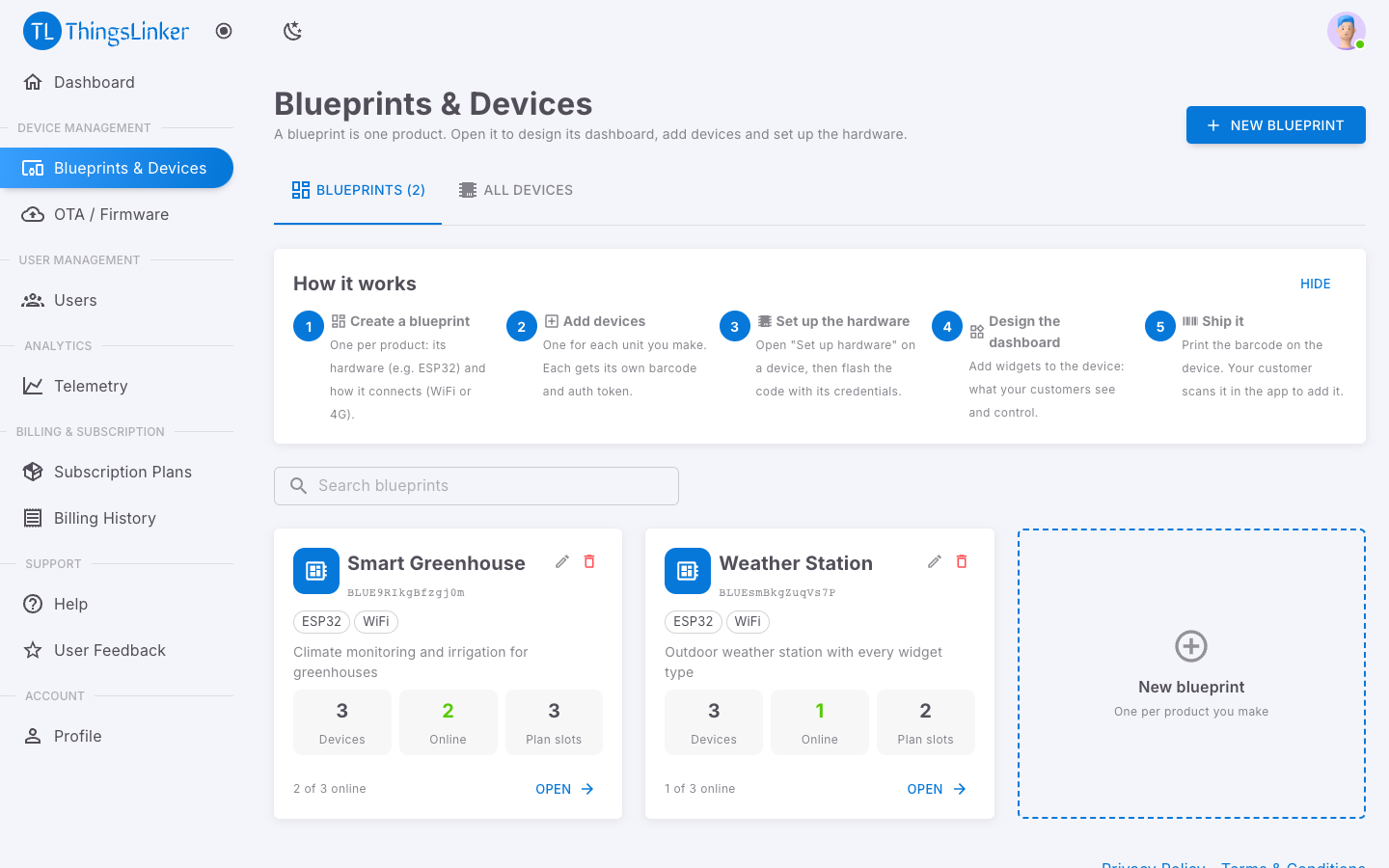
The blueprint gets a Blueprint Key that starts with BLUE. Your code needs it later.
3. Add a device
- Open your blueprint's card. This is the blueprint page, where everything about the product happens.
- Choose Add devices, keep One device, name it
Sensor 1and choose Add device.
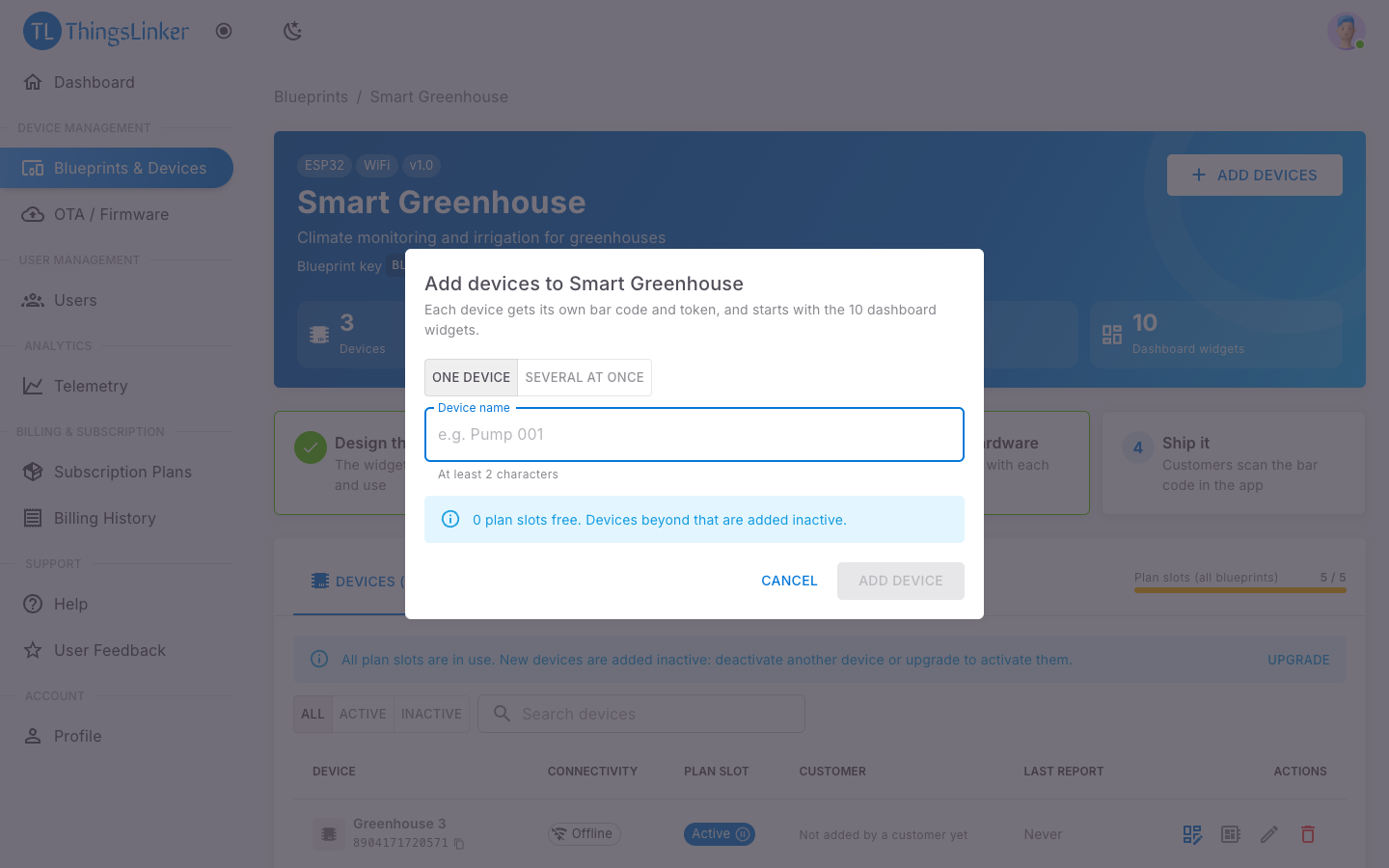
Each device gets its own auth token (the code its firmware uses) and bar code (what the customer scans).
4. Design the dashboard
Widgets are what the customer sees. Each widget uses a virtual pin, V0 to V124: a numbered channel shared by the widget and your code.
- On the blueprint page open the Dashboard tab and choose Design dashboard.
- Choose Add widget and create a Gauge: label
Temperature, virtual pin V0, unit °C, MIN0, MAX50. - Choose Add widget again and create a Switch: label
LED, virtual pin V1.
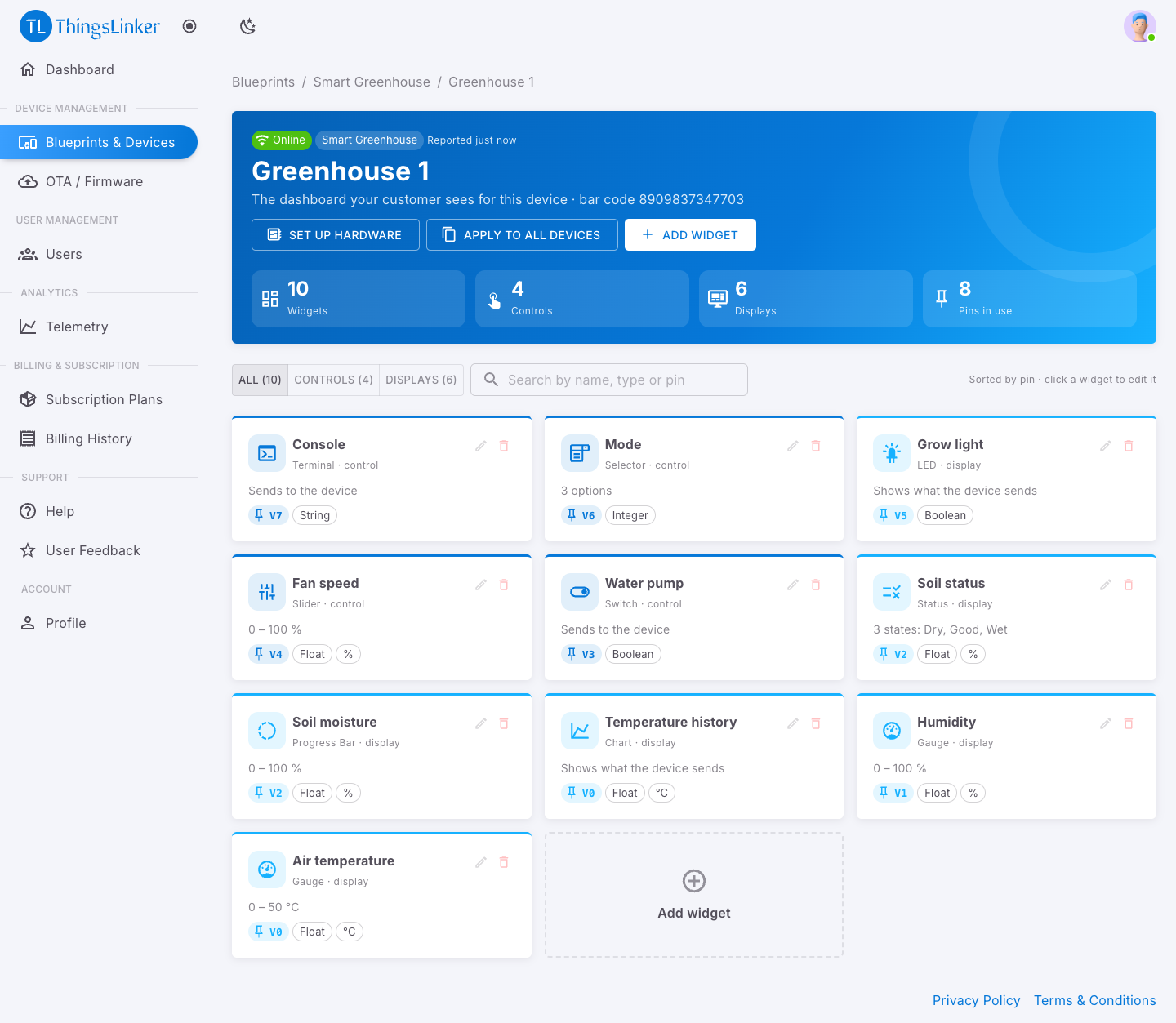
Devices you add to the blueprint later start with the same widgets. After changing the dashboard, Apply to all devices updates the devices you already have.
Part 2: Flash the firmware
5. Prepare Arduino IDE
- ESP32 support. In Arduino IDE open Tools → Board → Boards Manager, search for
esp32and install esp32 by Espressif Systems. - ThingsLinker library. Open the library on GitHub, ThingsLinker-Libraries/thingslinker-library, choose Code → Download ZIP, then in Arduino IDE choose Sketch → Include Library → Add .ZIP Library… and pick the ZIP.
- Helper libraries. Open Tools → Manage Libraries… and install ArduinoJson and PubSubClient.
6. Get the code for your device
On the blueprint page, Devices tab, choose the Set up hardware button on Sensor 1. It shows the device's auth token and blueprint key, and code that already contains them. Use Copy to copy it.
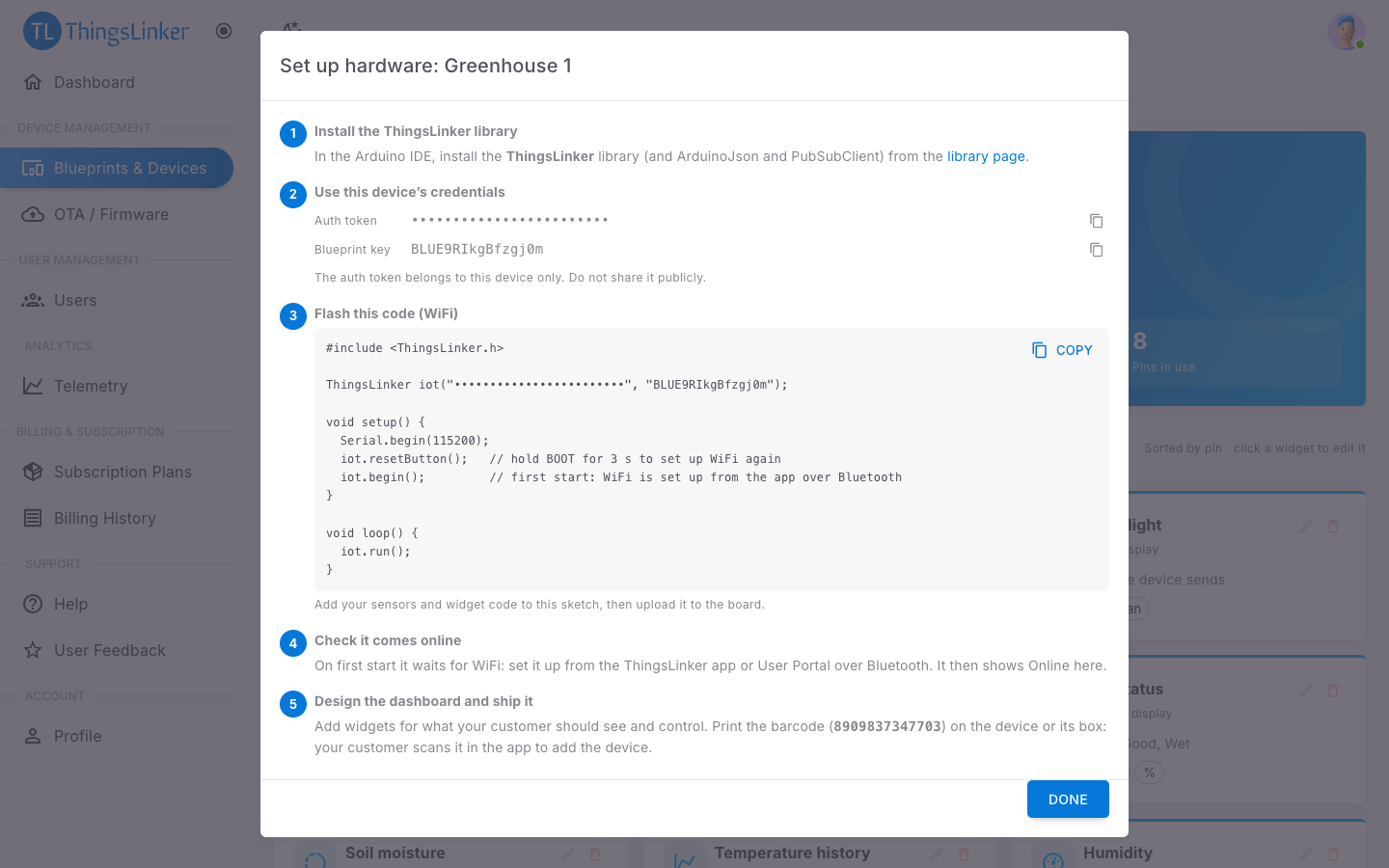
Anyone with it can send data as your device. Do not post it online or commit it to a public repository.
7. Add the temperature and the LED
Replace the sketch with this, keeping your own token and key on the ThingsLinker iot(...) line:
#include <ThingsLinker.h>

// From Set up hardware: this device's auth token and its blueprint key
ThingsLinker iot("YOUR_DEVICE_AUTH_TOKEN", "YOUR_BLUEPRINT_KEY");

const int LED_PIN = 2;   // the on-board LED on most ESP32 boards

void setup() {
  Serial.begin(115200);
  pinMode(LED_PIN, OUTPUT);

  iot.begin();           // connects to WiFi (or waits for setup over Bluetooth) and to ThingsLinker

  // The LED switch on V1: runs whenever the customer flips it
  iot.onSwitch("V1", [](bool on) {
    digitalWrite(LED_PIN, on ? HIGH : LOW);
    Serial.println(on ? "LED on" : "LED off");
  });
}

void loop() {
  iot.run();             // keep this at the top of loop(), and avoid long delay() calls

  // Every 5 seconds, send a temperature to the gauge on V0
  static unsigned long last = 0;
  if (millis() - last >= 5000) {
    last = millis();
    float temperature = random(200, 350) / 10.0;   // 20.0 to 35.0; replace with your sensor's reading
    iot.gauge("V0", temperature);
    Serial.printf("Temperature %.1f °C\n", temperature);
  }
}
What each part does:
iot.begin()starts the connection. On the very first start there is no WiFi saved, so the device waits for it over Bluetooth (step 9).iot.onSwitch("V1", …)runs your code when the LED switch on pin V1 changes.iot.gauge("V0", value)sends a reading to the Temperature gauge on pin V0.iot.run()keeps the connection alive and delivers incoming commands. It must run often.
8. Upload
- Plug in the board. In Tools → Board choose your ESP32 board (for example ESP32 Dev Module), and in Tools → Port its USB port.
- Choose Upload (the → button).
- Open Tools → Serial Monitor at 115200 baud. You see the device start and wait for WiFi setup.
If the upload fails with "Failed to connect", hold the board's BOOT button while the upload starts.
Part 3: Add the device as its customer
9. Give the device your WiFi
- Install the ThingsLinker app from Google Play, and create a user account in it or at app.thingslinker.com. Use a different email from your organization account if you like; they are separate accounts.
- Choose Add Device and scan or type
Sensor 1's bar code (on the blueprint page, Devices tab). - Enter your WiFi name and password. The app sends them to the device over Bluetooth.
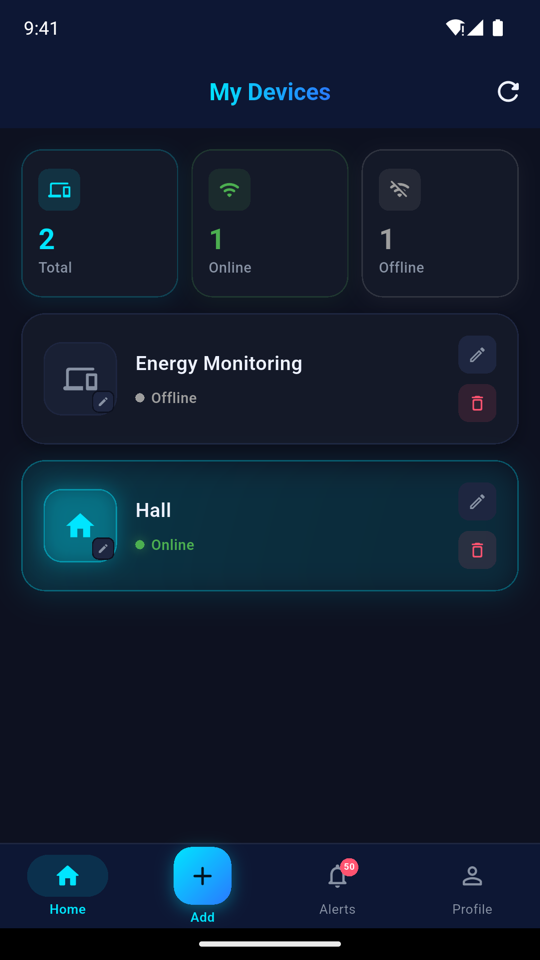
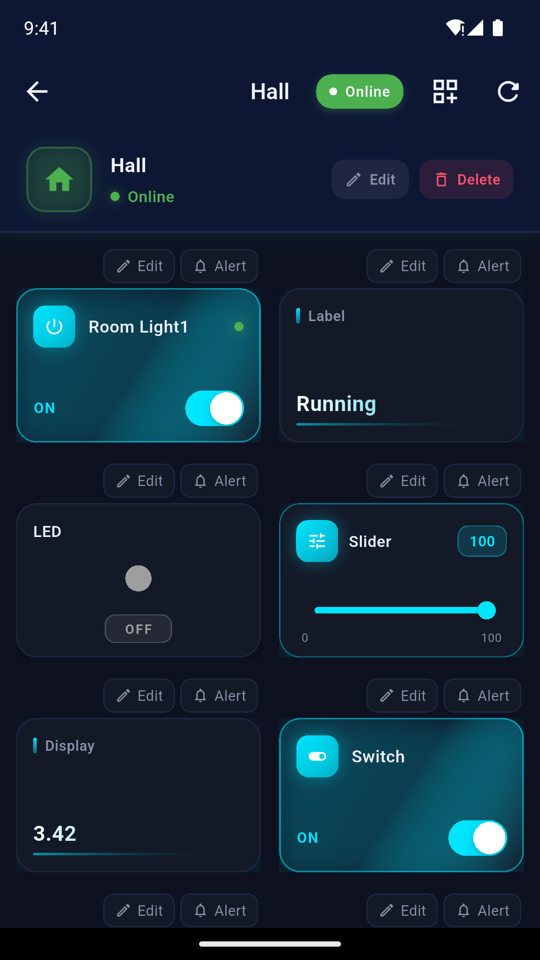
The device joins your WiFi, connects to ThingsLinker and shows Online. From now on it reconnects by itself whenever it starts. See Add a device for every detail.
10. Watch it live
Open the device. The Temperature gauge updates every 5 seconds, and flipping LED turns the board's LED on and off within a second. The same dashboard is in the User Portal.
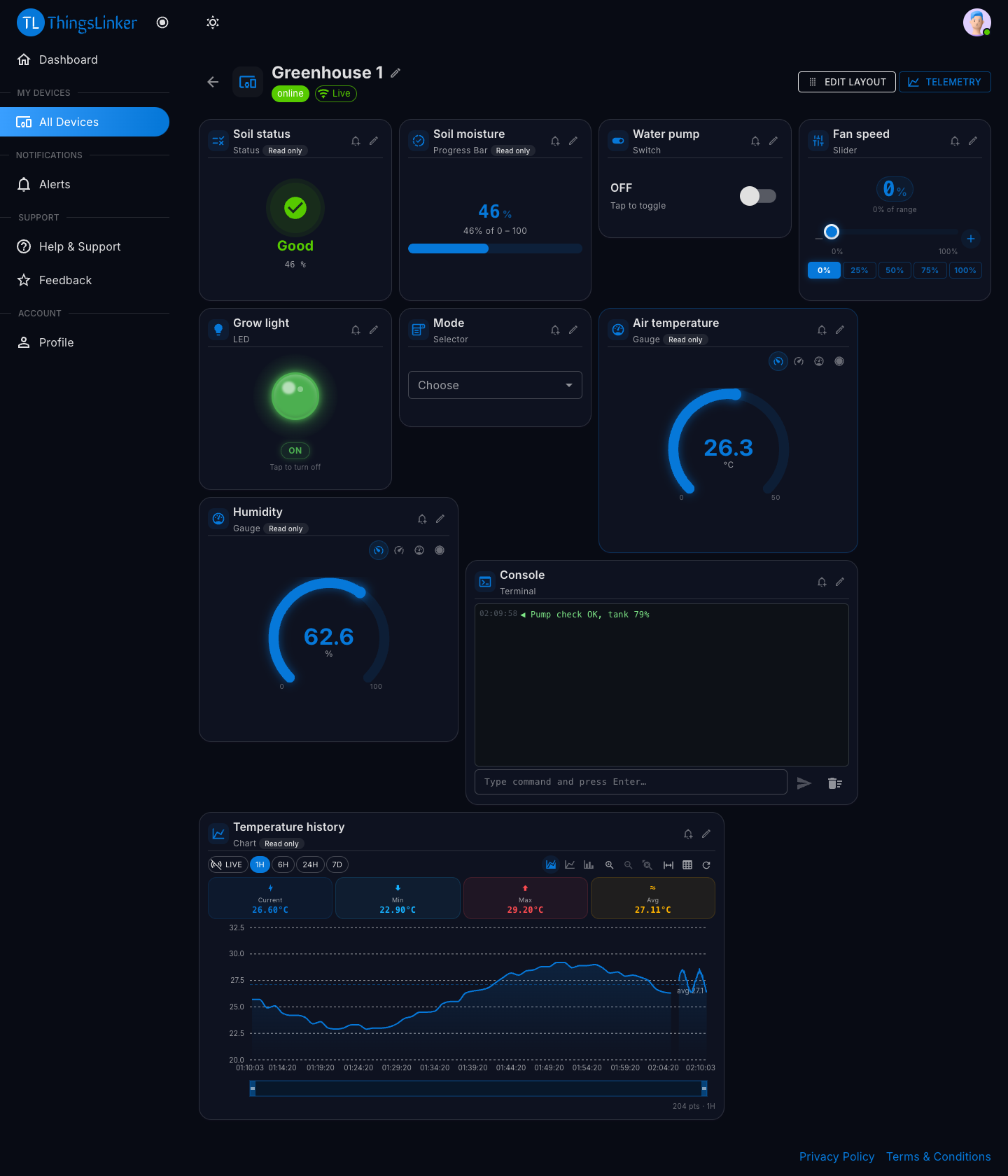
You did it. What next?
| Next step | Guide |
|---|---|
| Use a real sensor, more widgets and controls | Sending and receiving · Library examples |
| Update the firmware over the air | OTA firmware updates |
| Get notified when the temperature is too high | Alerts |
| Make many devices of the product | Devices |
| Connect over 4G instead of WiFi | 4G quick start |
If something does not work
| What you see | What to do |
|---|---|
| The device stays Offline | Check the Serial Monitor. It must say it joined WiFi and connected. Use a 2.4 GHz network and check the token and key were copied whole. |
| The app does not find the device over Bluetooth | The device only advertises while it waits for WiFi. Restart it and stay close. On Android, allow Bluetooth and location. |
| The gauge shows nothing | The widget's pin must match the code: gauge on V0, switch on V1. |
| More help | Troubleshooting |