Devices
Every physical unit you make is a device under a blueprint. Adding a device gives it the credentials its firmware needs, the bar code your customer scans, and the blueprint's dashboard.
You find devices in two places:
- A blueprint's page, Devices tab: the devices of that product. This is where you add them and set them up.
- Blueprints & Devices → All devices: every device of every blueprint, to choose which ones your plan covers.
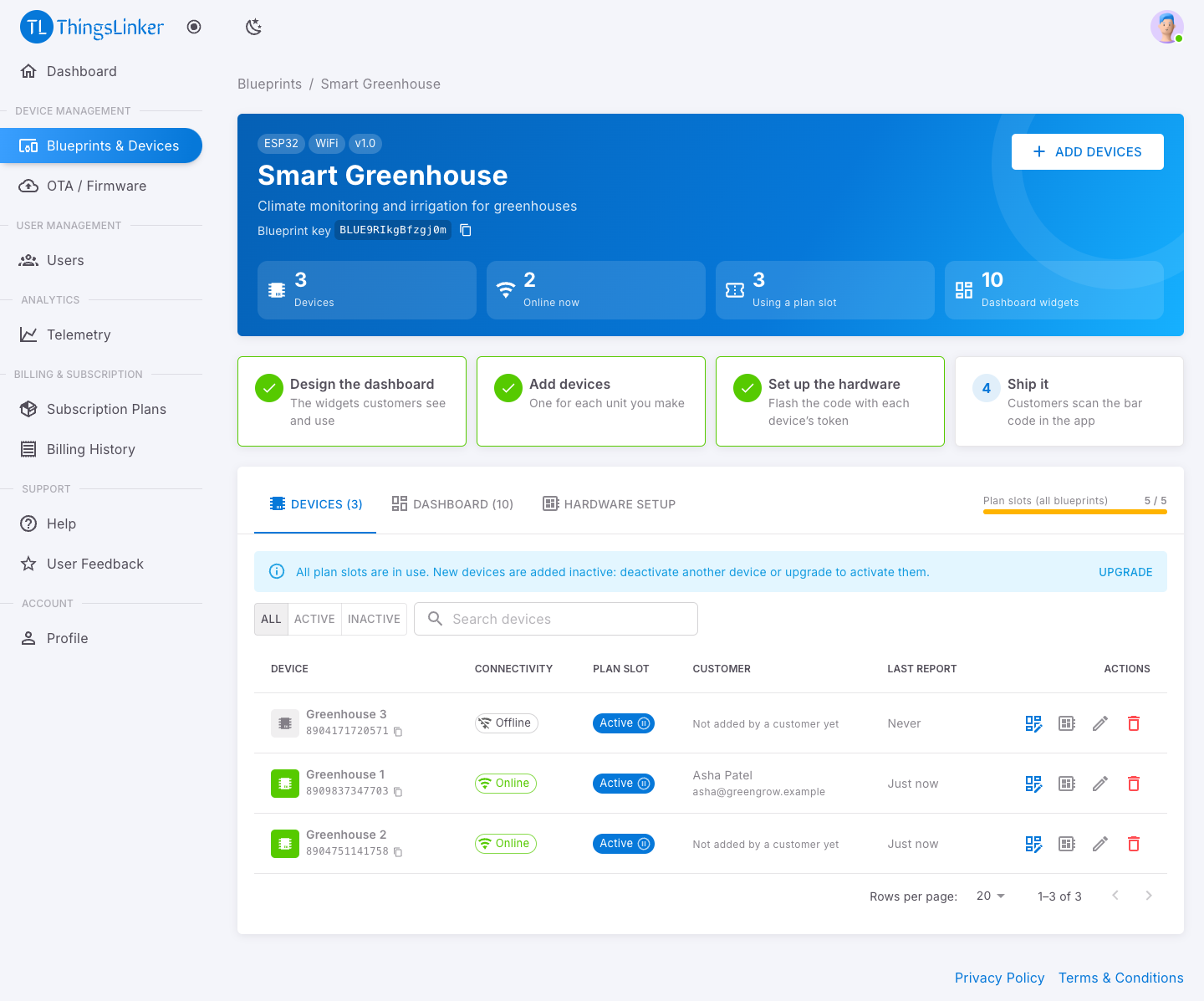
Add devices
- Open the blueprint and choose Add devices.
- Choose how many:
- One device: enter a Device name, for example
Pump 001. - Several at once: enter How many (up to 1,000). They are named after the blueprint:
Smart Greenhouse #1,#2and so on.
- One device: enter a Device name, for example
- Choose Add device (or Add N devices).
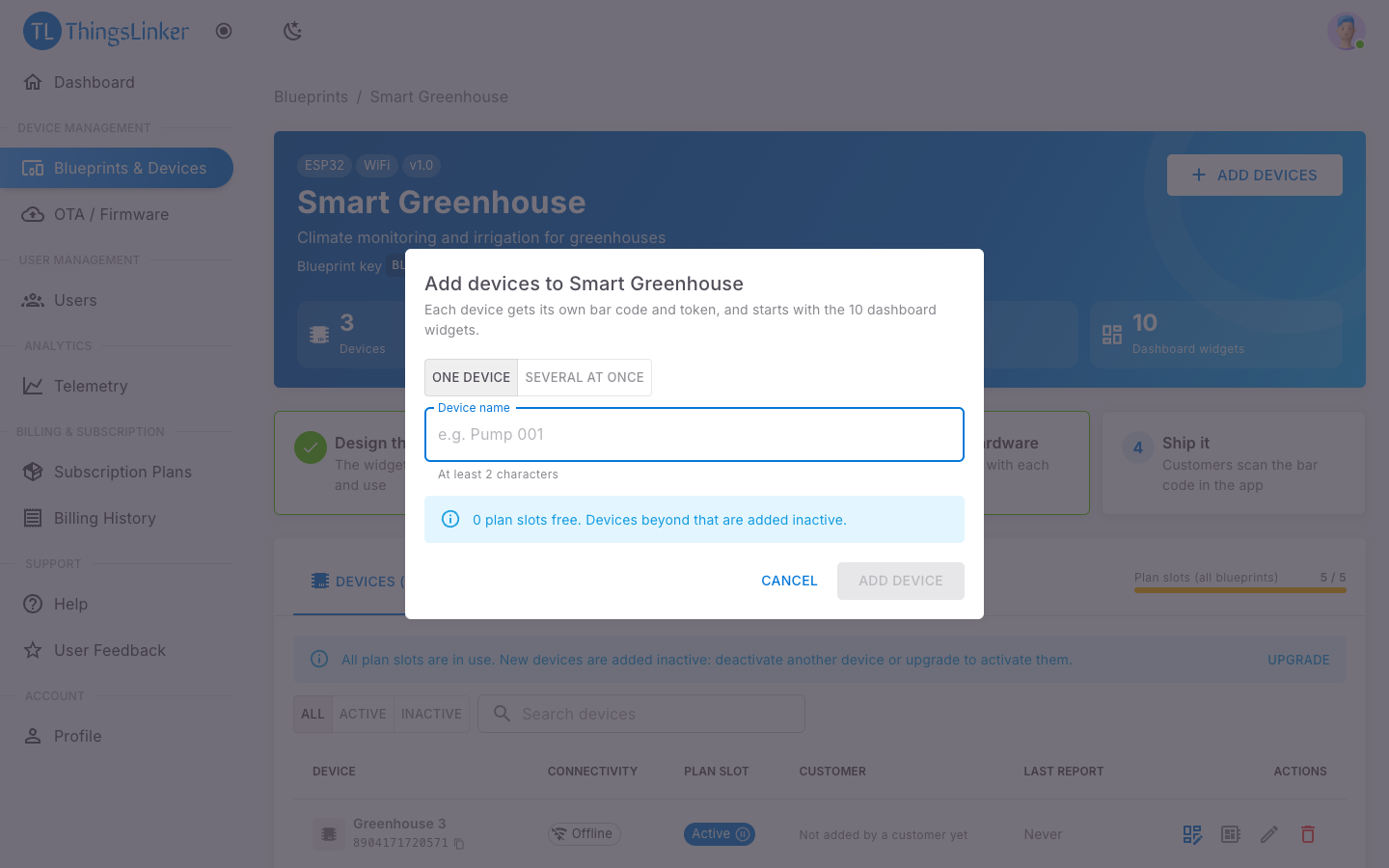
Every new device:
- gets its own auth token and bar code;
- starts with the blueprint's dashboard (its widgets), so it is ready to use;
- starts active if a plan slot is free, and inactive otherwise.
A device's credentials
| Credential | Used for | Share with |
|---|---|---|
| Auth Token | The firmware's identity on ThingsLinker. | Your device developer only. Keep it secret: anyone with it can send data as the device. |
| Bar code | 13 digits. Customers scan or type it to add the device to their account. | Your customer: print it on the device's label or box, ideally also as a QR code. |
| Blueprint Key | Shared by every device of the blueprint; the firmware needs it with the auth token. | Your device developer. |
The device list
Each row shows:
| Column | Meaning |
|---|---|
| Device | Its name and bar code (with a copy button). In All devices, also its blueprint. |
| Connectivity | Online or Offline, from the device's connection. |
| Plan slot | Active: it uses one of your plan's device slots. Otherwise an Activate button. |
| Customer | The name and email of the customer who added it, or Not added by a customer yet. |
| Last report | When it last sent something, for example 5 min ago. |
| Actions | Dashboard, Set up hardware, Rename, Delete. |
Filter with All / Active / Inactive, and search by name.
Set up the hardware
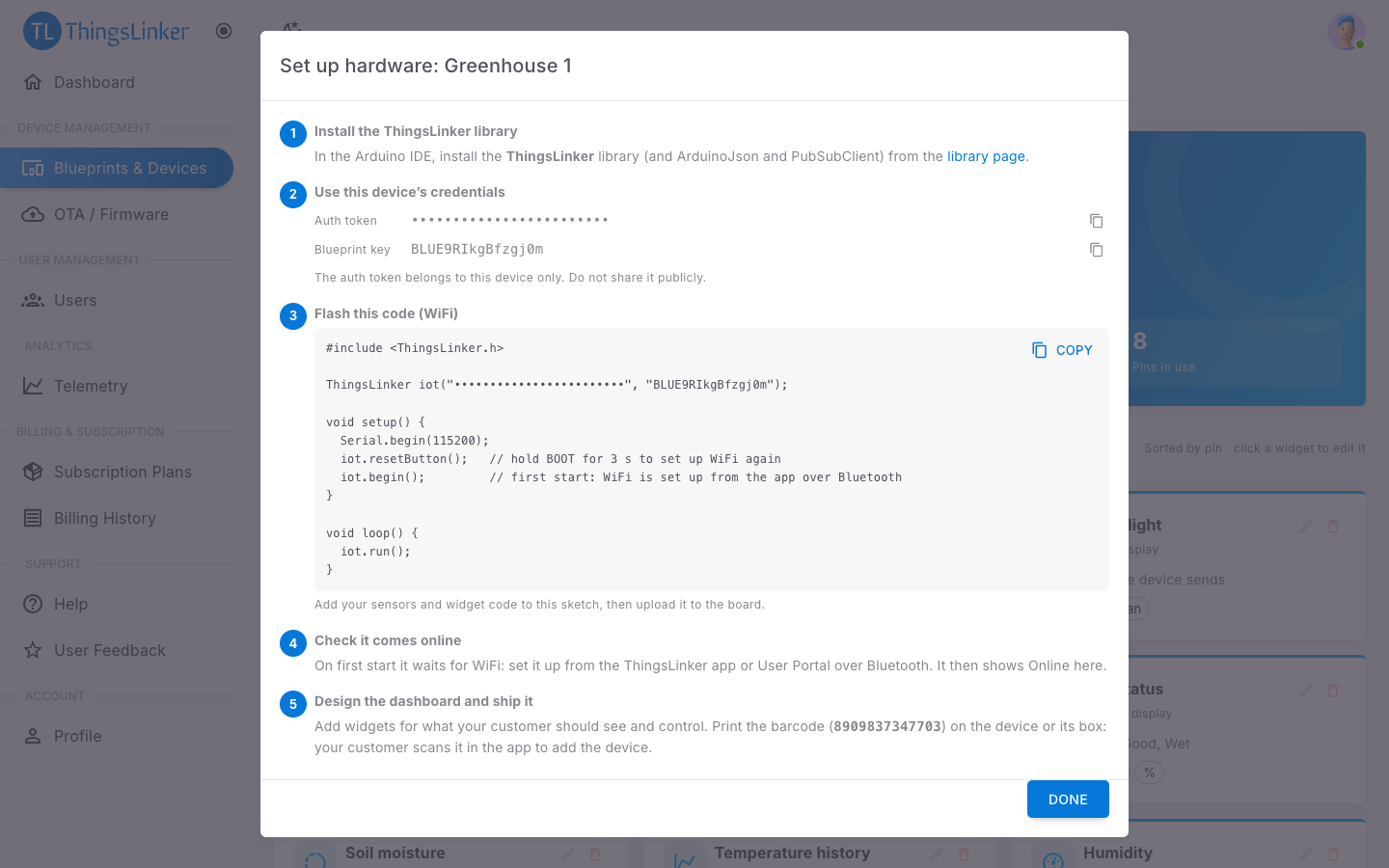
Set up hardware (the board icon) opens a step-by-step guide with everything your developer needs:
- Install the ThingsLinker Arduino library.
- The device's Auth Token and Blueprint Key, with copy buttons.
- The code to flash, already filled in with those credentials: the WiFi version, or the 4G version for GSM blueprints.
- How to check it comes online.
- Designing its dashboard and printing the bar code.
ThingsLinker does not print labels. Copy each device's bar code and print it, as text and ideally as a QR code, on the device or its box. That is all a customer needs to add the device.
Activate and deactivate devices
Your plan sets how many devices can be active at once. An active device uses a plan slot whether it is online or not.
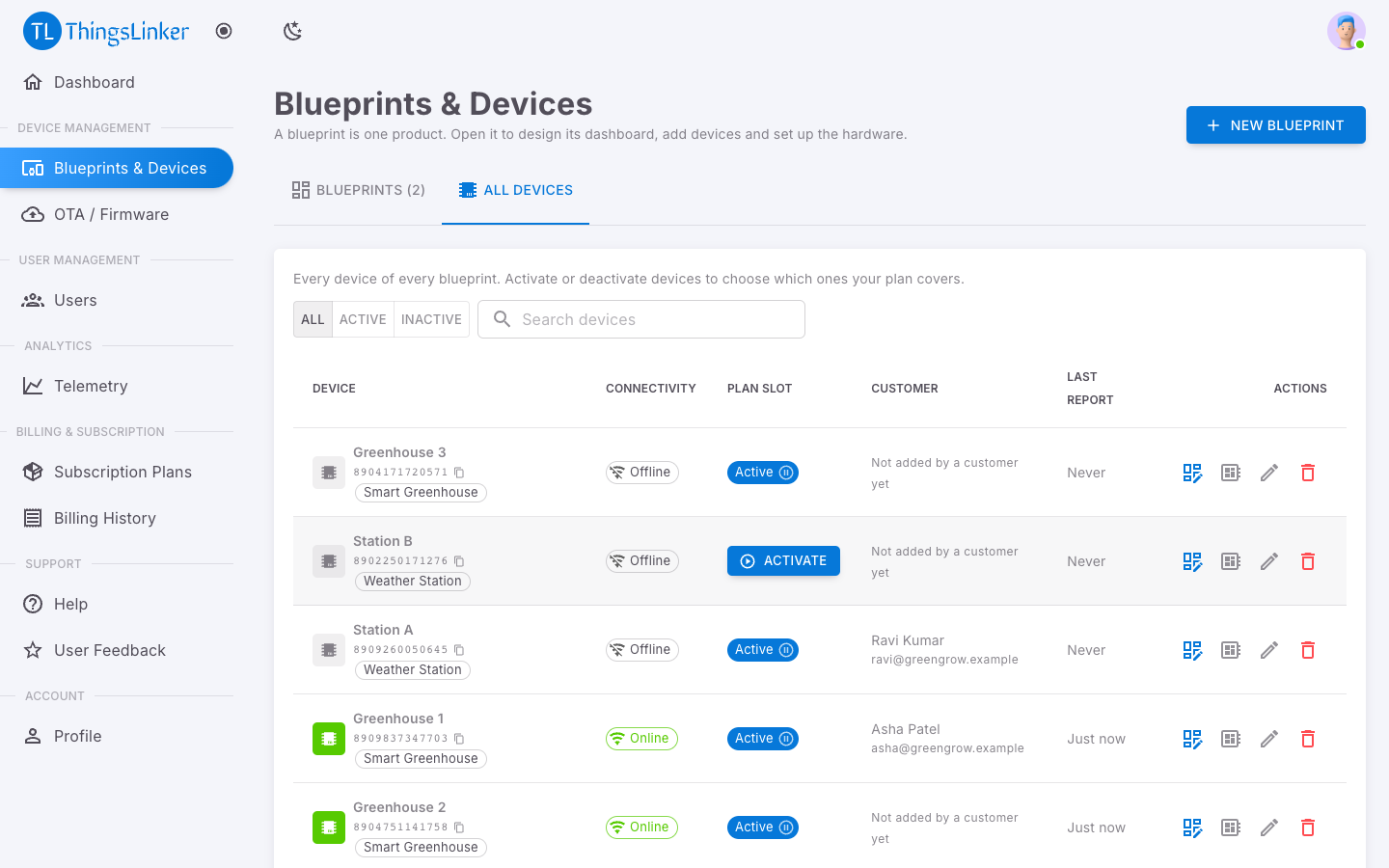
- Activate uses a free slot. If none is free, you see why, with a link to Subscription Plans.
- To deactivate, use the pause button on the Active chip and confirm. While a device is inactive, ThingsLinker does not store its readings or check its alerts, it gets no OTA updates, and its owner sees it as inactive with its controls turned off. The device keeps running and stays registered to its owner; its settings and history are kept, and you can activate it again when a slot is free.
To move to a plan with fewer devices, deactivate the devices you no longer want covered first. See Subscription and billing.
Rename or delete a device
- Rename changes the device's name. Customers can also give it their own name in the app.
- Delete removes the device permanently. ThingsLinker stops handling its readings and it disappears from its customer's account. This cannot be undone.
What happens when a customer adds the device
When a customer adds the device with its bar code, it is linked to their account and appears in their app and User Portal, and they appear among your users. A device belongs to one customer account at a time; if it is sold on, the first owner removes it and the new owner adds it.