Blueprints
A blueprint is one of your products, for example "Smart Greenhouse" or "Pump Controller". Everything about that product lives on its blueprint: its devices (one per unit you make), its dashboard (the widgets your customers see) and the hardware setup.
Blueprints & Devices
Choose Blueprints & Devices in the menu. It has two tabs:
- Blueprints: one card per product, with its hardware, connection, key, and how many devices it has, how many are online and how many use a plan slot. Click a card to open the product.
- All devices: every device of every blueprint, to manage plan slots. See Devices.
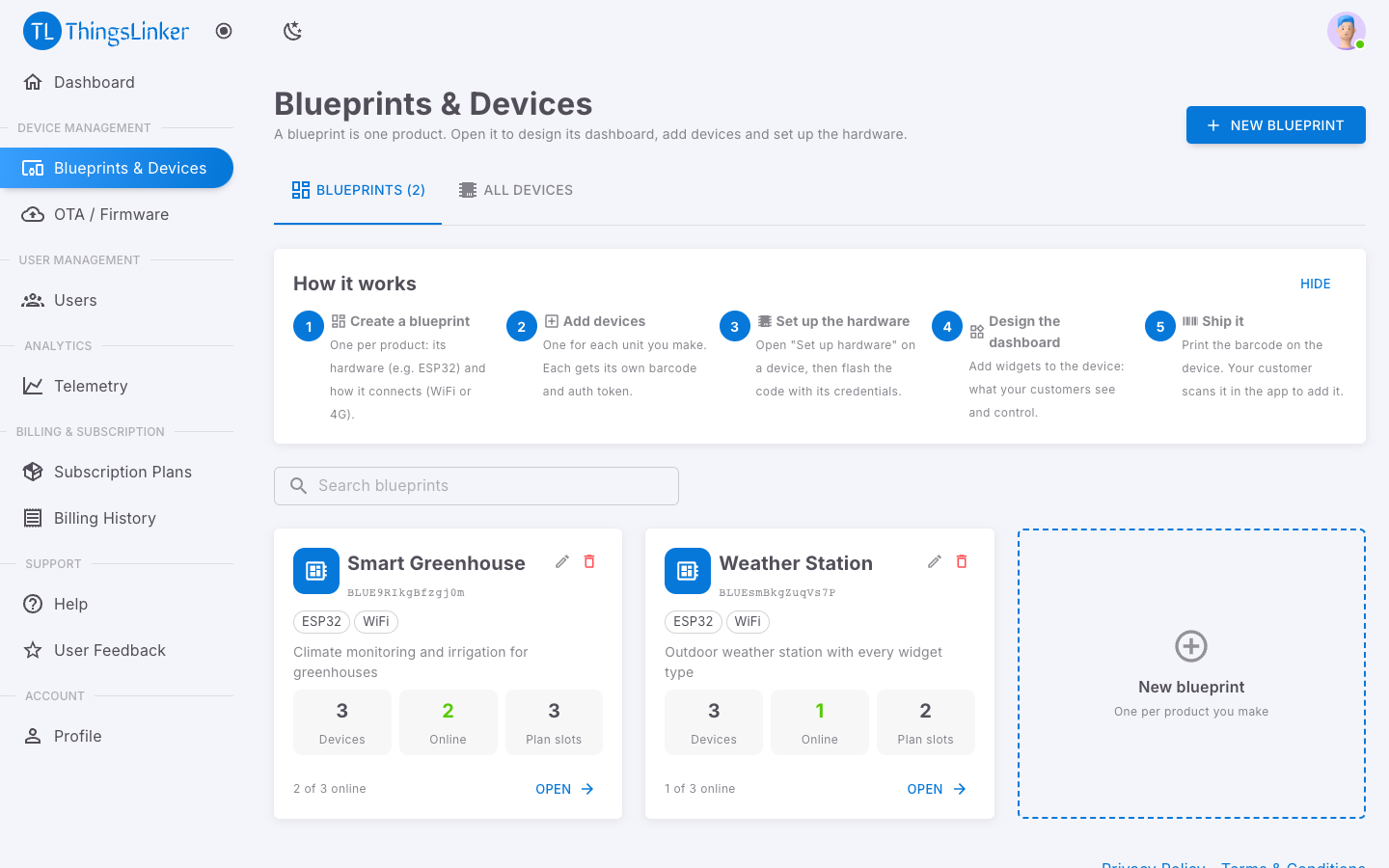
Create a blueprint
You need an active plan to create blueprints.
- Choose New blueprint (top right, or the dashed New blueprint card).
- Fill in the form:
| Field | What to enter |
|---|---|
| Blueprint Name | The product's name, for example "Smart Greenhouse". |
| Description | Optional. What it is for, for example "Climate monitoring and irrigation". |
| Version | Optional. Your own label, for example 1.0. |
| Hardware Type | The board, for example ESP32. |
| Connection Type | How it connects, for example WiFi or GSM (4G). |
- Save. ThingsLinker gives the blueprint a Blueprint Key, a code starting with
BLUE. Every device's firmware needs it.
The blueprint page
Open a blueprint to manage the product. Everything you need is on one page.
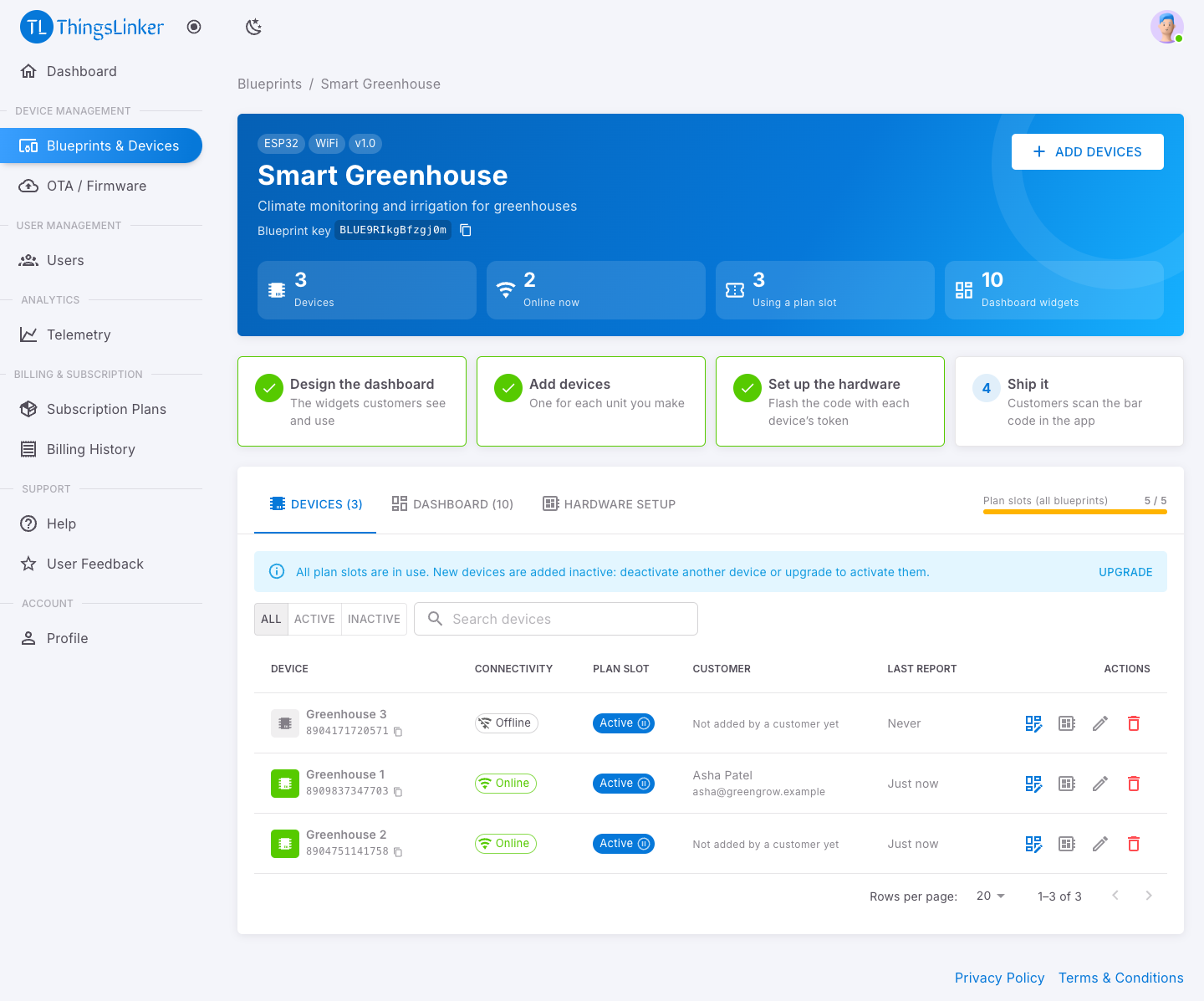
The header shows the hardware and connection, the Blueprint key with a copy button, Add devices, and four numbers: devices, online now, using a plan slot, and dashboard widgets.
The four steps show what is done and what is next, and take you there when clicked:
- Design the dashboard: the widgets customers see and use.
- Add devices: one for each unit you make.
- Set up the hardware: flash the code with each device's token.
- Ship it: customers scan the bar code in the app.
The tabs:
| Tab | What it is for | Guide |
|---|---|---|
| Devices | The product's devices: online/offline, plan slot, customer, last report, and per-device actions. | Devices |
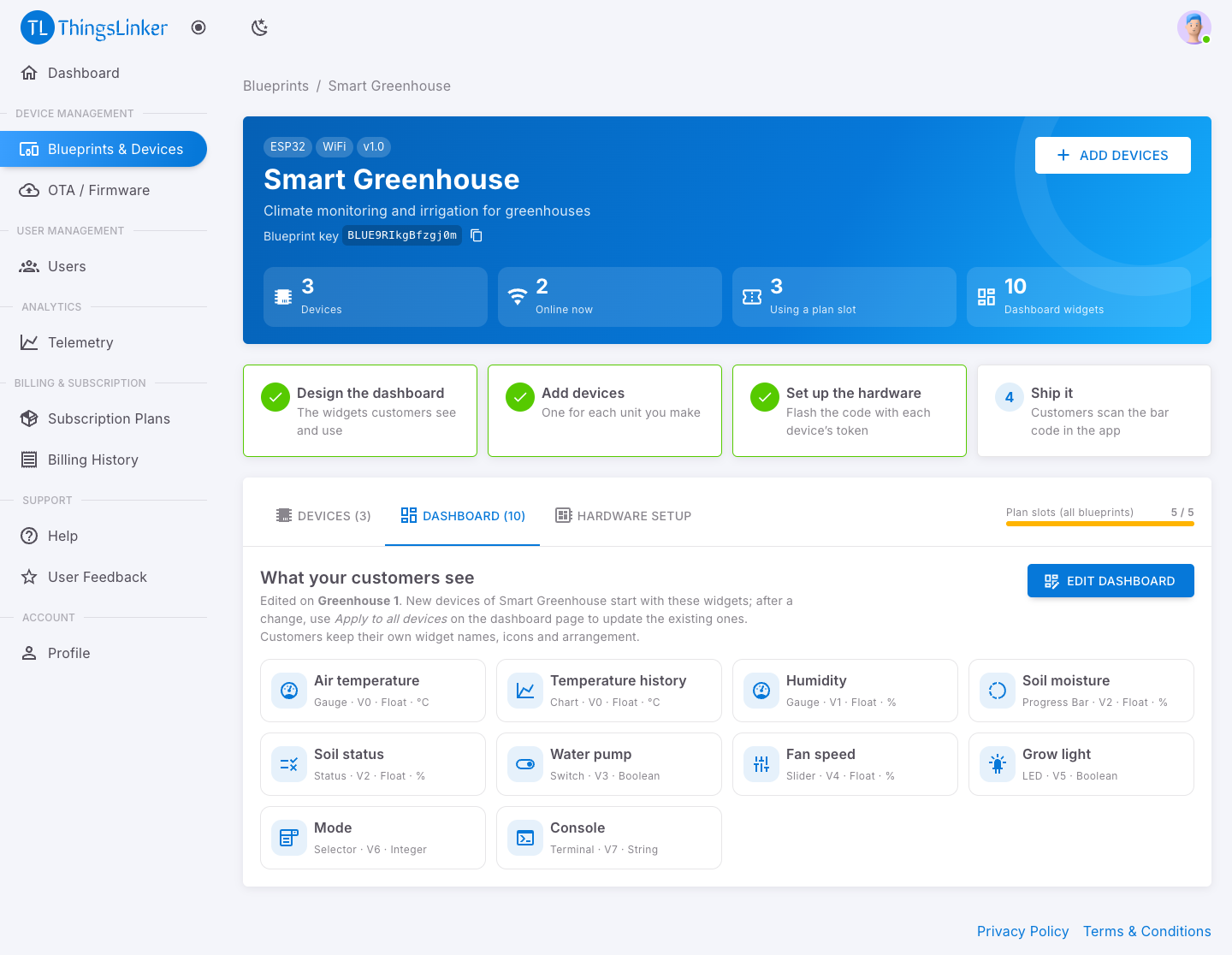
| Dashboard | The widgets every device of the product starts with, and Edit dashboard. | Dashboards and widgets |
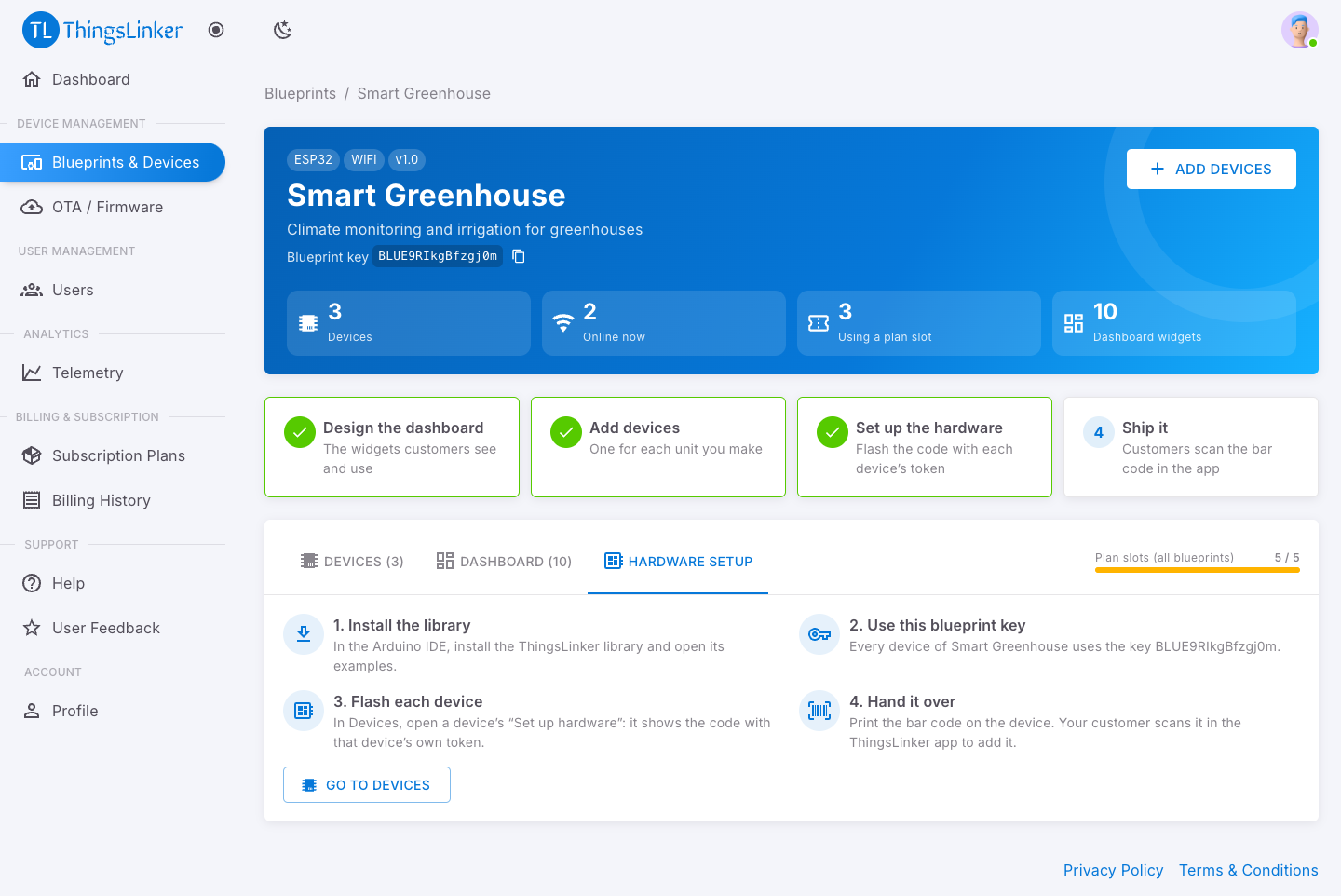
| Hardware setup | The steps from installing the library to handing the device to a customer. | Device developers |
The bar on the right of the tabs shows your plan slots across all blueprints, for example 3 / 5.
Edit a blueprint
On Blueprints & Devices, use the pencil on the blueprint's card to change its name, description, version, hardware type or connection type. The Blueprint Key never changes, so devices keep working.
Delete a blueprint
Use the bin on the blueprint's card and confirm.
Deleting a blueprint also permanently deletes every device created under it. Those devices stop working, disappear from their users' accounts, and cannot be restored. Only delete a blueprint you no longer need for any device.