Dashboards and widgets
Widgets make up a device's dashboard: what your customer sees and controls in the app and the User Portal. Each device has its own widgets, and a blueprint's dashboard is the set every new device of that blueprint starts with.
Open a device's dashboard
Blueprints & Devices → open the blueprint → the Dashboard tab → Edit dashboard. Or, on the Devices tab, use Dashboard on a device's row.
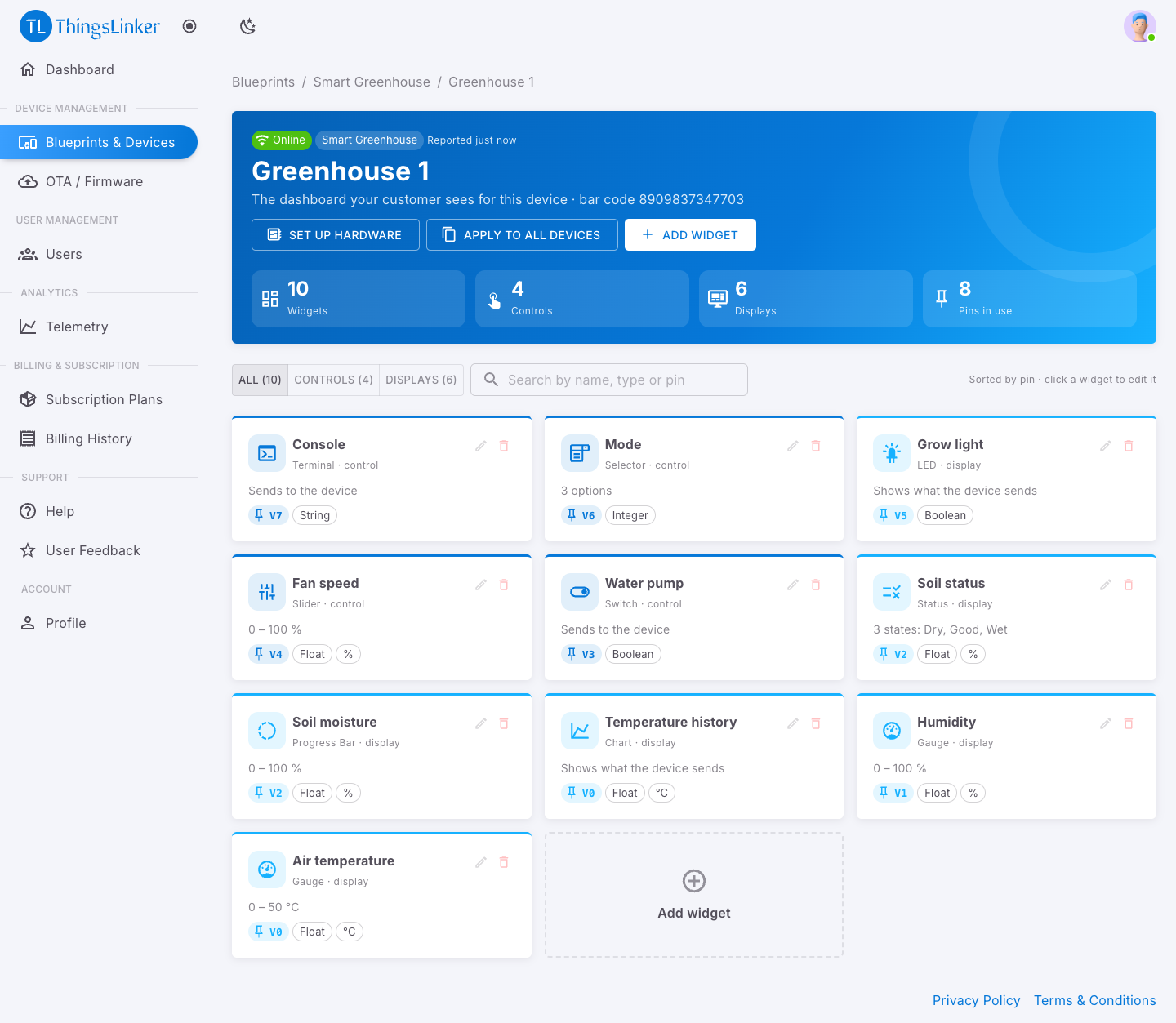
The page shows:
- the device's Online/Offline status, its blueprint, when it last reported, and its bar code;
- Set up hardware, Apply to all devices and Add widget;
- how many widgets, controls, displays and pins in use it has;
- a card per widget, sorted by pin, with its type, whether it is a control (the customer sends to the device) or a display (it shows what the device sends), its pin, data type and unit. Filter by All / Controls / Displays or search by name, type or pin. Click a card to edit it.
Add a widget
- Choose Add widget (or the dashed Add widget card).
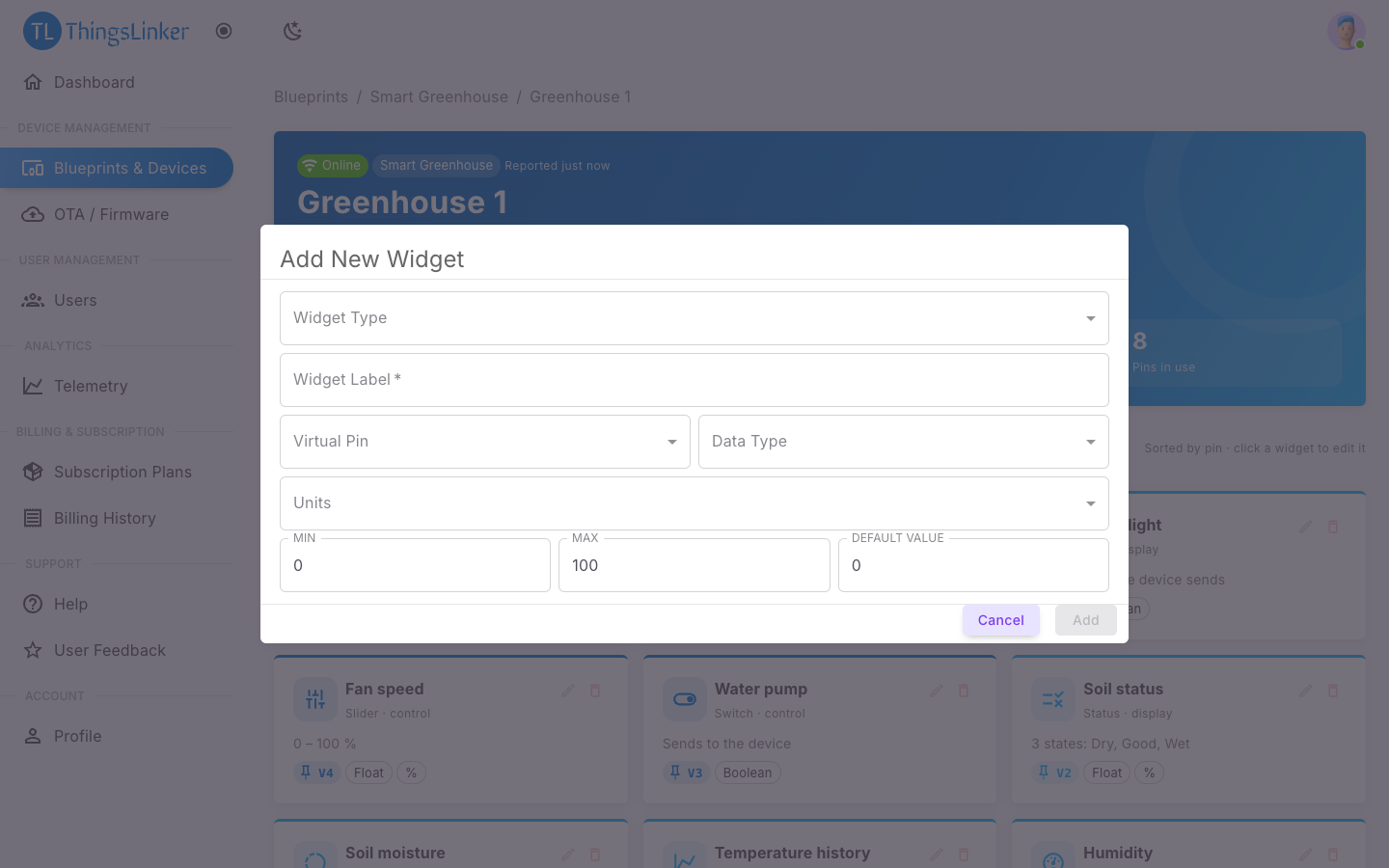
- Pick the Widget Type. The rest of the form adapts to the type.
- Fill in the common settings:
| Setting | What it is |
|---|---|
| Widget Label | The name shown on the dashboard, for example "Temperature Sensor". Customers can rename it for their device. |
| Virtual Pin | The channel the widget and the firmware share, V0 to V124. Only free pins are offered. Tell your device developer which pin each widget uses. |
| Data Type | What kind of value the widget carries. Only the types the widget supports are offered, with the usual one first. See Widget types. |
| Units | Optional. Shown after the value, for example °C or %. |
| MIN, MAX | The value range: the ends of a gauge or progress bar, or the limits of a slider or number input. MIN must be lower than MAX. |
| DEFAULT VALUE | The value shown before the device has reported anything. |
- Save. The widget appears on the customer's dashboard straight away.
If the form says This device has no free virtual pin left, all 125 pins are in use; remove a widget you no longer need.
Some widgets do not read or send on a virtual pin (Text, Computed Value, Event Log, Multi Chart, Table). For those, the form does not ask for a pin, data type or unit.
Settings for particular widget types
Chart
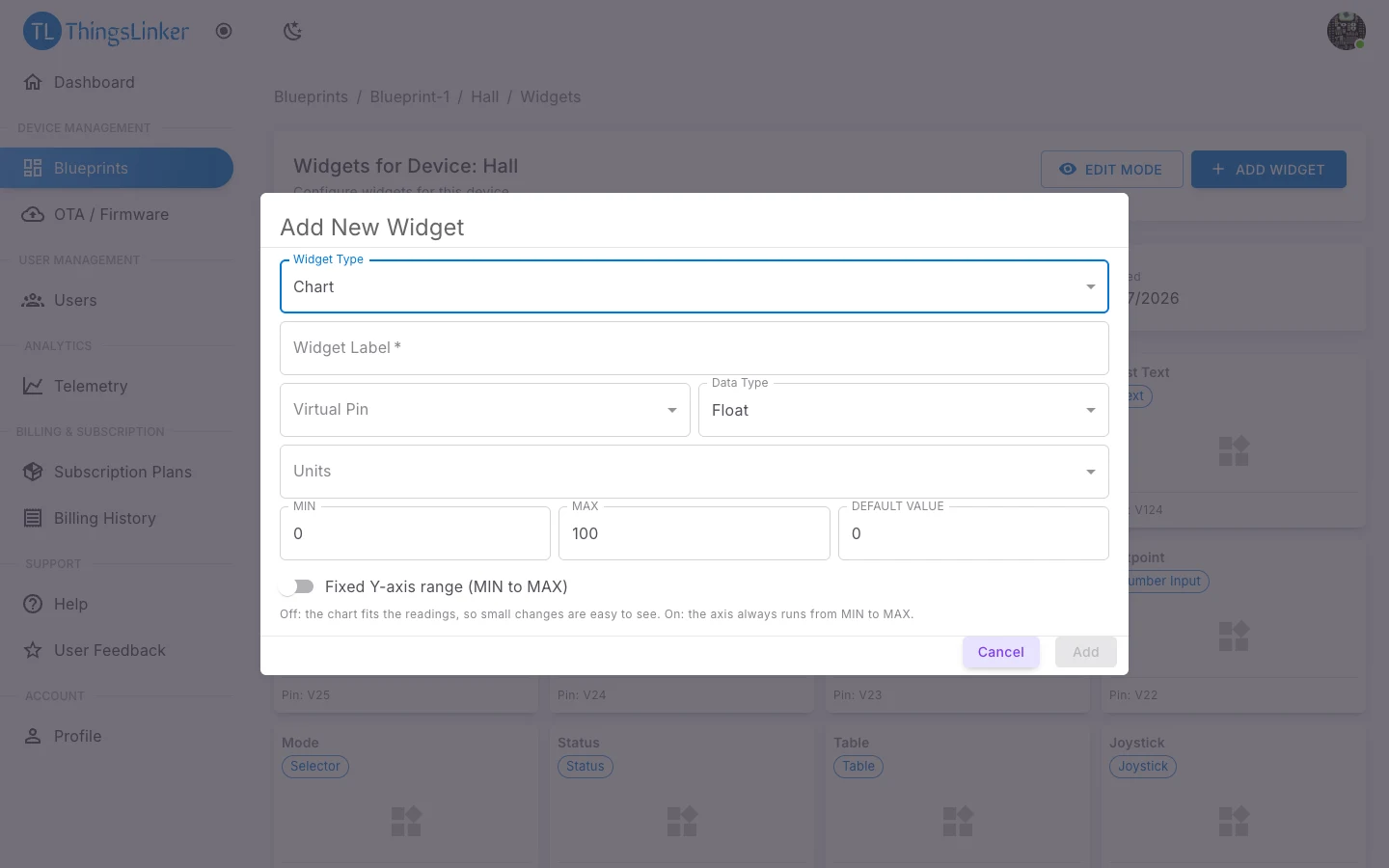
Fixed Y-axis range (MIN to MAX): off by default, so the chart's scale fits the readings and small changes are easy to see. Turn it on to always draw the axis from MIN to MAX, for example 0 to 100 for a percentage.
Number Input
STEP: how much − and + change the value, for example 0.5. It must be greater than 0. MIN and MAX limit what customers can enter.
Progress Bar
Orientation: Horizontal (left to right) or Vertical (bottom to top). MIN and MAX set the empty and full ends.
Status
Turns a value into a named state, for example 0 = Normal, 1 = Warning, anything from 50 up = Fault. For each state set:
- a Label, a Colour and an Icon;
- When the value is: either a single Value (a number or text such as
ERR), or In a range From … To (below), where either end can be left as any.
The first state that fits the current value is shown, so order matters: use Move up and Move down.
Selector (or Dropdown)
Lets customers pick one option, for example Low, Medium, High. For each option set a Label and the Value sent to the device. Show as a Dropdown list or a Row of buttons.
Keypad
A set of buttons that each send one command, for example Start, Stop, Reset. Add the buttons with their labels and values, and set Buttons per row. Keypad presses are sent once and not repeated when an offline device reconnects, which suits one-off commands.
Terminal
A console: the device writes lines to it, and the customer can type commands. Like Keypad and Text Input, typed commands are sent once and not repeated when an offline device reconnects.
Text Input
Lets customers type a message for the device. Set the Placeholder shown in the empty box and the Max length (up to 250 characters).
Text (or Note)
Shows fixed text on the dashboard, for example instructions. Enter the Text (line breaks are kept) and choose a Style (Plain text, Heading or Highlighted note) and an Alignment.
Computed Value
Shows a number worked out from other pins, so the device does not have to calculate it. Enter a Formula using pin codes, numbers, + - * /, brackets and the functions min, max, sum, avg, abs and round(value, decimals):
| Formula | Result |
|---|---|
V0 * V1 | Two readings multiplied, for example voltage × current = power |
(V2 - V3) / 2 | A difference, halved |
avg(V0, V1, V2) | The average of three readings |
round(V4 * 1.8 + 32, 1) | °C converted to °F, to one decimal |
Set the Unit shown after the result and the number of Decimals.
Event Log
Lists recent changes on the device. Pins to follow: choose which pins to list, or leave it empty to follow every other widget on the device (up to 12 pins).
Multi Chart
Plots several pins together. For each series choose the Pin, a Label, a Colour and an Axis. Put readings on very different scales, such as temperature and pressure, on separate axes so both stay readable.
Timer
Customers set the timer's times on the dashboard; the form sets how it starts:
- Manual (Countdown Timer), or Scheduled (Auto Start/Stop) with a Start Time, Stop Time and Repeat Pattern (once, daily, Weekdays (Mon-Fri), Weekends (Sat-Sun) or Custom Days);
- Action: Turn ON or Turn OFF, and the Target Value sent when the timer fires, for example
1for on and0for off; - Enable Scheduled Timer switches the schedule on.
ThingsLinker's servers send scheduled commands, so timers work even when nobody has the dashboard open.
Edit or delete a widget
Click a widget's card (or its pencil) to edit it, or use its bin to delete it. Changes show on the customer's dashboard straight away. Deleting a widget removes it from the dashboard; the device's recorded readings are kept.
One dashboard for the whole blueprint
You design the dashboard once, and ThingsLinker copies it to the blueprint's devices:
- New devices start with the blueprint's dashboard automatically, copied from the first device of the blueprint that has widgets. The blueprint's Dashboard tab shows it.
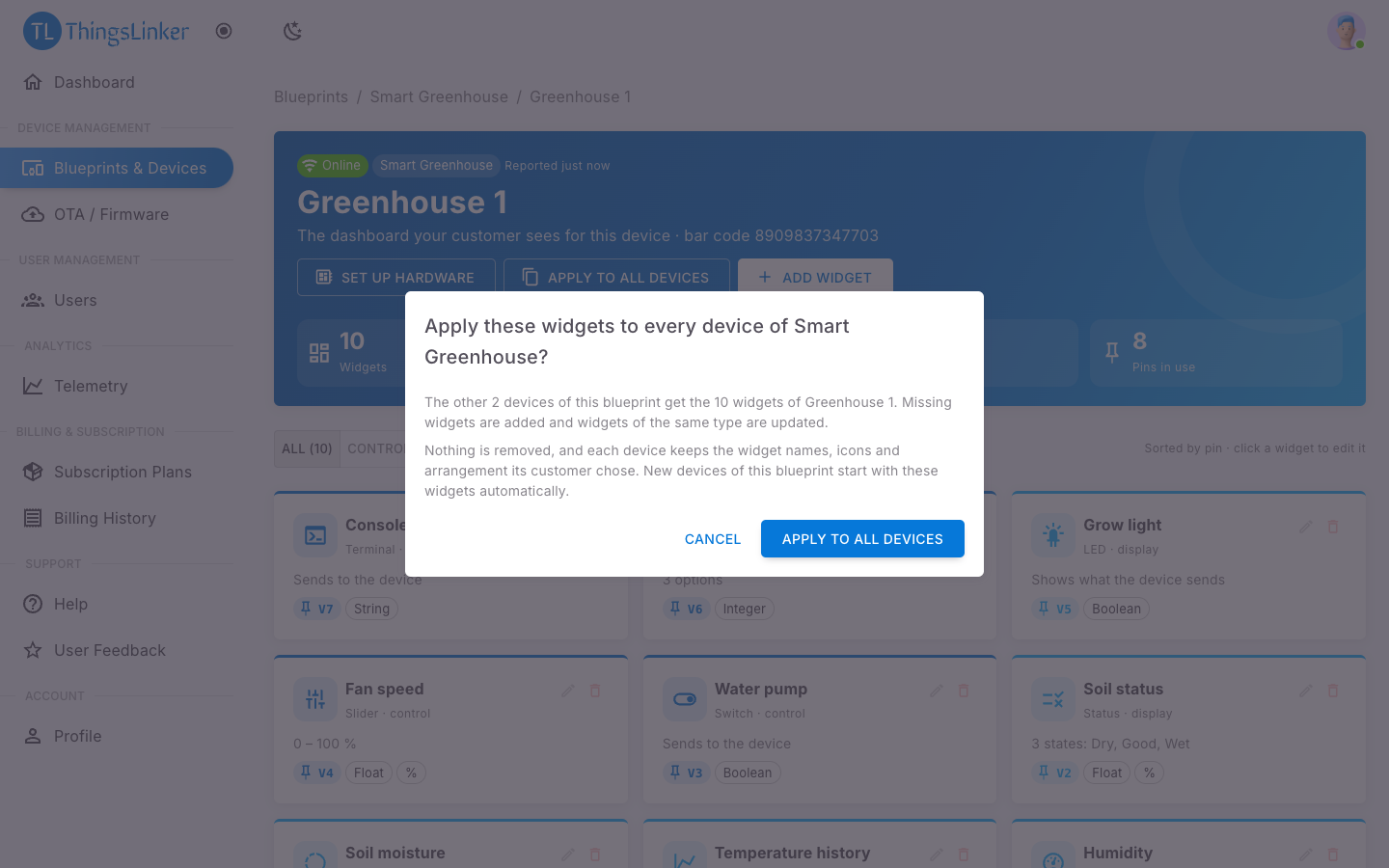
- Apply to all devices copies the widgets of the device you are looking at to every other device of the blueprint. Missing widgets are added and widgets of the same type are updated. Nothing is removed, and each device keeps the widget names, icons and arrangement its customer chose.
Use the same pins for the same readings across a blueprint, so one firmware works for all its devices.