Device developer overview
The ThingsLinker Arduino library connects an ESP32 to ThingsLinker. It handles the network connection, the secure connection to ThingsLinker's MQTT broker, reconnecting, accurate timestamps and WiFi setup over Bluetooth, so your sketch only deals with readings and commands.
#include <ThingsLinker.h>

ThingsLinker iot("YOUR_AUTH_TOKEN", "YOUR_BLUEPRINT_KEY");

void setup() {
  Serial.begin(115200);
  iot.begin();
}

void loop() {
  iot.run();
}
What the library does
| Feature | Details |
|---|---|
WiFi (ThingsLinker) | Connects over WiFi. On first boot it starts WiFi setup over Bluetooth so users can give it their network from the app or the User Portal. |
4G (ThingsLinkerGSM) | Connects through a Simcom A7672 or SIM7672 4G LTE modem. No WiFi needed. See 4G (GSM) quick start. |
| Widgets | One-line functions to send values to each widget type and to receive commands from controls. See Sending and receiving. |
| Secure connection | TLS to mqtt.thingslinker.com, with automatic reconnect. |
| Timestamps | Readings carry the time they were taken (clock set over the network). |
| Firmware updates | Install new firmware over the air. See OTA firmware updates. |
| Offline storage | Optionally keep readings while offline and send them later. See Offline storage. |
| Settings storage | Save values in flash so they survive restarts. See Saving settings. |
Requirements
- An ESP32 board.
- Arduino IDE (or another Arduino-compatible toolchain) with the ESP32 board package.
- The libraries ArduinoJson (7.4.3 or later) and PubSubClient (2.8 or later), from the Arduino Library Manager. The 4G variant needs only ArduinoJson.
Install the library
The official library is on GitHub: github.com/ThingsLinker-Libraries/thingslinker-library.
- Open the repository, choose Code and then Download ZIP.
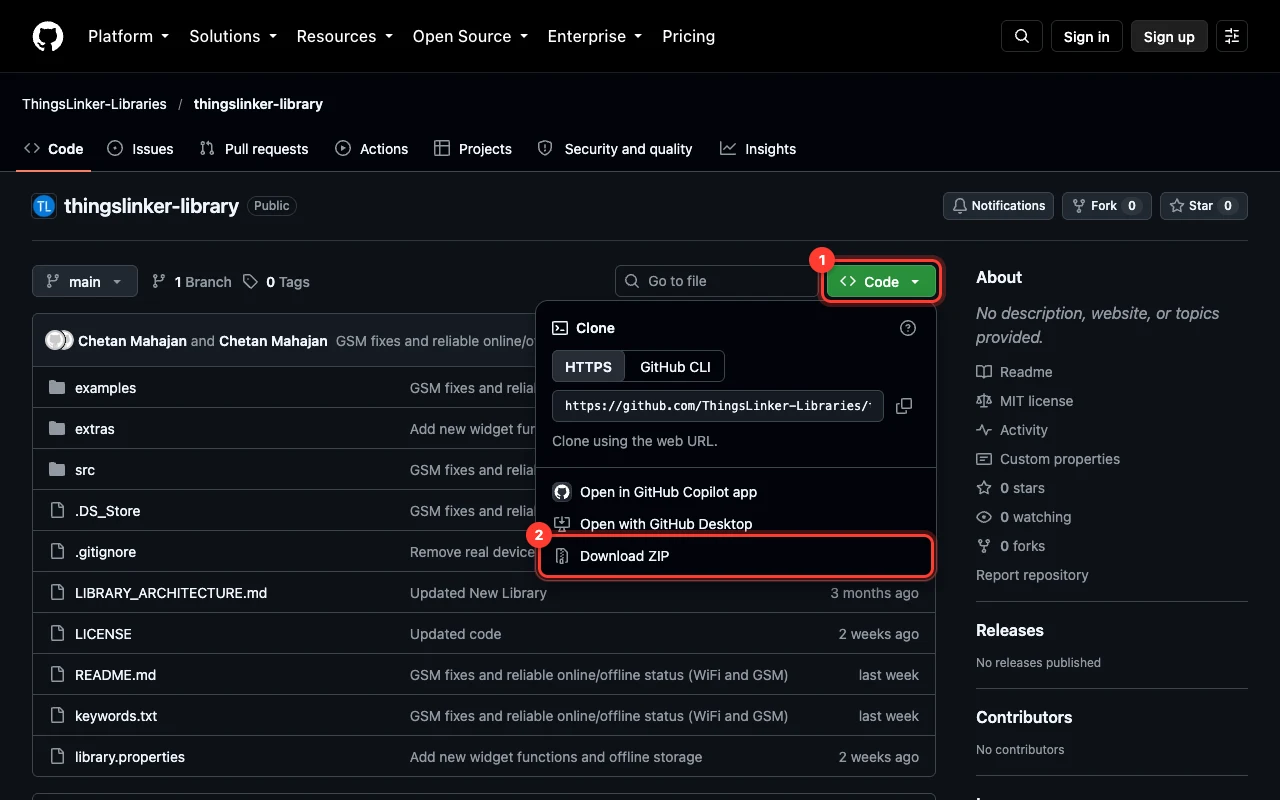
- In Arduino IDE choose Sketch → Include Library → Add .ZIP Library… and pick the ZIP you downloaded.
- Install ArduinoJson and PubSubClient from Tools → Manage Libraries….
If you use git, you can instead clone the repository into your Arduino libraries folder:
cd ~/Documents/Arduino/libraries
git clone https://github.com/ThingsLinker-Libraries/thingslinker-library.git ThingsLinker
Pull again (git pull) to update.
The examples appear under File → Examples → ThingsLinker.
What you need from the organization
Every device needs two values from the Organization Portal:
| Value | Where | Example |
|---|---|---|
| Auth Token | Blueprints & Devices → the blueprint → Set up hardware on the device | a long code, unique per device |
| Blueprint Key | At the top of the blueprint's page, and in Set up hardware | BLUEbV7N2u5diuUi |
You also need the virtual pin of each widget set up on the device, for example "Temperature chart on V1, pump switch on V8". See Dashboards and widgets.
Anyone with a device's auth token can send data as that device. Do not publish it, for example in a public repository: keep it out of code you share.
Examples
| Example | Shows |
|---|---|
00_Connection_Test | Check credentials and connectivity |
01_SimpleExample | The smallest working sketch |
01_BLE_Provisioning | WiFi setup over Bluetooth, and setting it up again with the BOOT button |
03_Temperature_Monitor | Send a sensor reading to a Gauge |
07_All_Widgets_Test | Every widget type in one sketch |
19_OTA_Auto | Automatic firmware updates over the air (recommended) |
08_OTA_Update, 11_OTA_TestFirmware | A pair for trying an update by hand |
15_Dashboard_Widgets | Status, Progress Bar, Selector, Number Input, Text Input, Keypad |
17_Offline_Storage | Keep readings while WiFi is down |
12_GSM_Connection | Basic 4G connection |
14_GSM_GPS_Tracker | GPS tracking with the modem's GNSS, on a Map widget |
18_GSM_Offline_Storage | Keep readings while there is no mobile signal |
All the examples, with the widgets each needs and step-by-step walkthroughs, are in Library examples.