Manage your devices
See your devices
- App: the Home screen shows how many devices you have, how many are online and offline, and a card for each device. Tap Refresh to update it.
- User Portal: Dashboard gives the same overview with your recent devices; All Devices lists every device, with a search box.
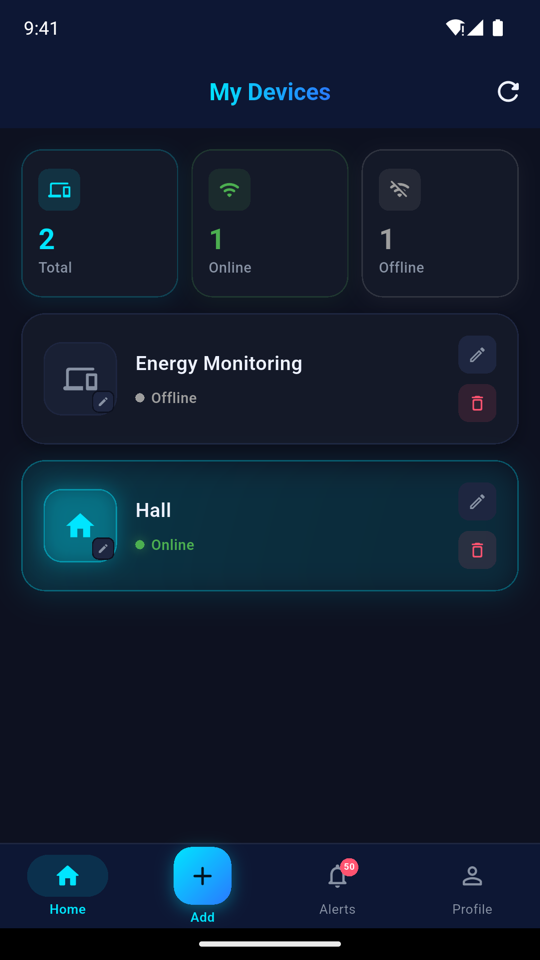
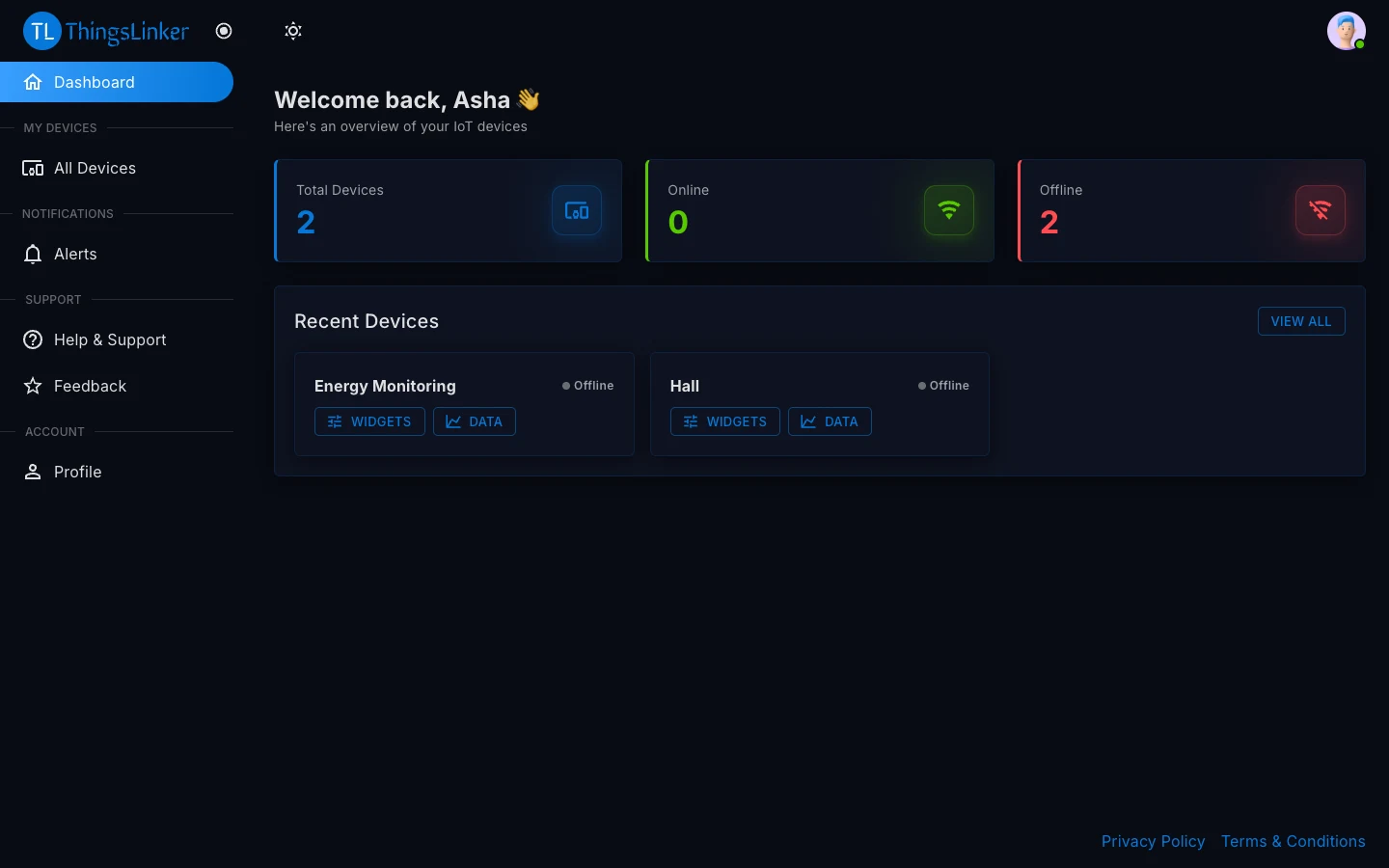
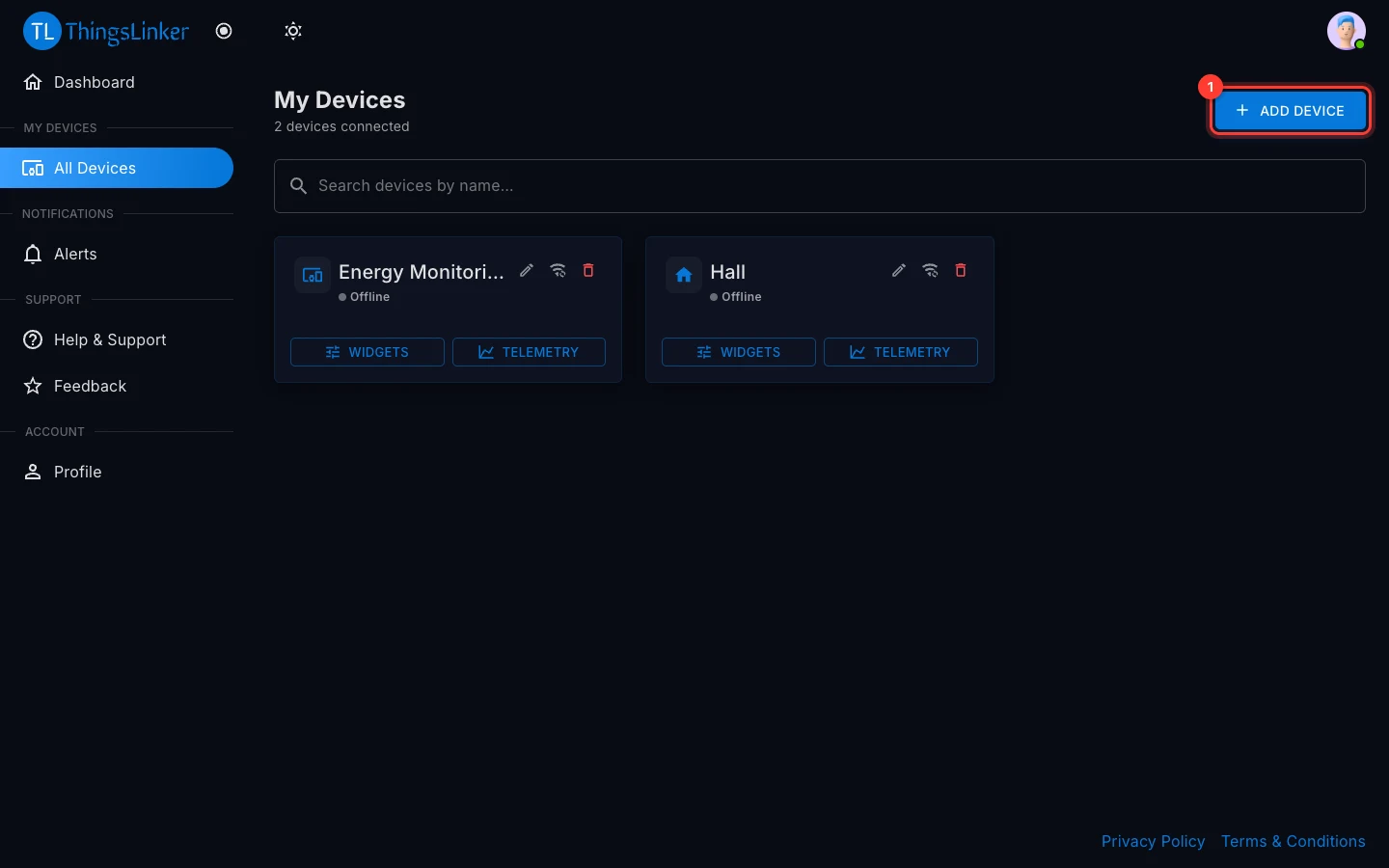
Each device shows its name, its icon and whether it is Online or Offline. Open a device to see its dashboard.
A device is offline when it has no power, no network, or has lost its connection to ThingsLinker. It goes back online by itself when the connection returns.
Rename a device
Each device card in the User Portal has three buttons: (1) Edit name and icon, (2) Change WiFi (only for devices that use WiFi; see Change a device's WiFi), and a red delete button.
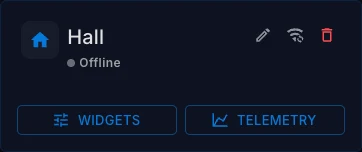
Give the device a name that tells you where it is or what it does, for example "Bedroom" or "Water Tank". The name is saved on the device, so the company that supplied it sees the new name too.
- App: open the device and tap Edit at the top, type the new name and save.
- User Portal: on All Devices, choose Edit name and icon on the device's card.
A device name cannot be empty.
Change a device's icon
Pick an icon that tells your devices apart at a glance.
- App: tap the device's icon, on its Home card or at the top of its dashboard, and choose a new one.
- User Portal: choose Edit name and icon on the device's card.
The icon is yours alone: other people never see it.
Remove a device from your account
Removing a device unlinks it from your account. It does not delete the device, and it can be added again later with its code.
- App: open the device, tap Delete and confirm with Remove.
- User Portal: on All Devices, choose the delete button on the device's card and confirm.
After removing a device, its readings stay with the company that supplied it, and the device can be added by you or by someone else.
To add it back, follow Add a device.