The mobile app
The ThingsLinker app for Android does everything the User Portal does, from your phone: add devices over Bluetooth, see live readings, control your devices and get alerts. One account works in both, and they share the same dashboards and layout.
Install the app
Get ThingsLinker on Google Play, or search for "ThingsLinker" in the Play Store on your Android phone.
Sign in or create an account
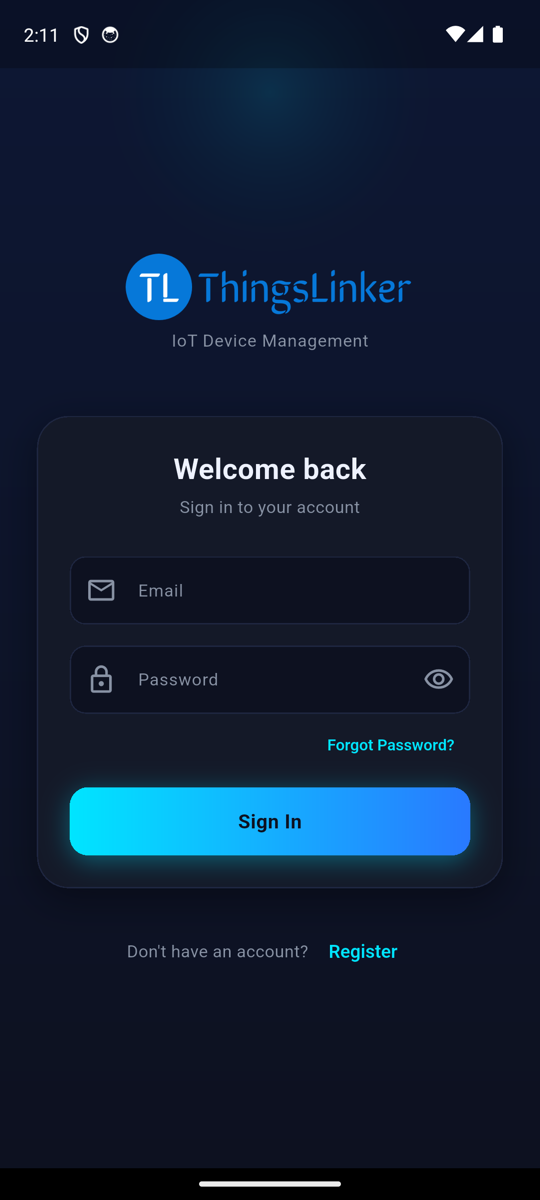
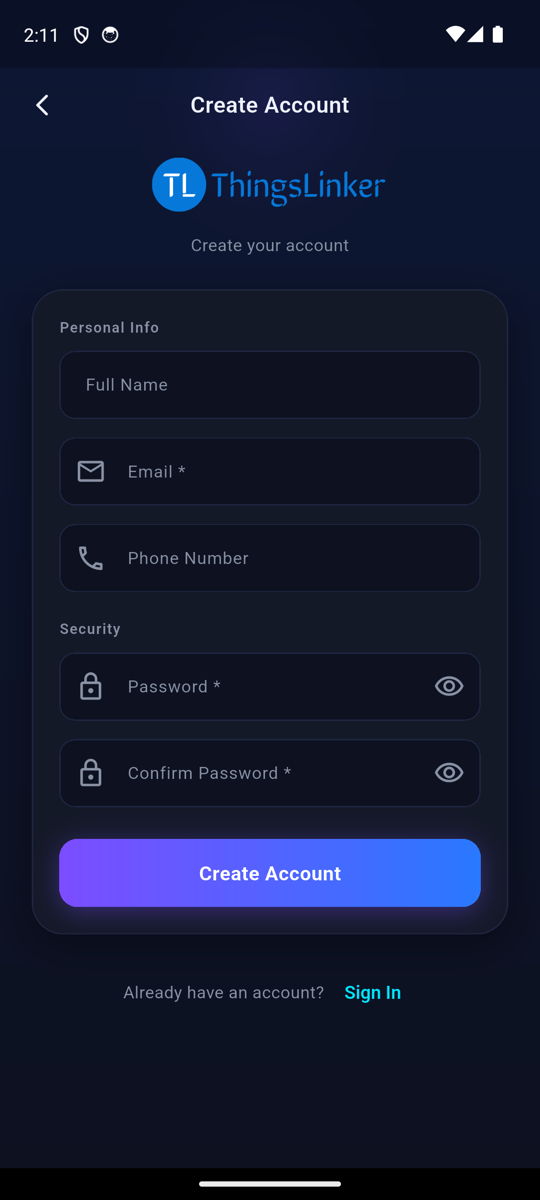
- Open the app. If you already have an account (from the app or the User Portal), enter your Email and Password and tap Sign In.
- New here? Tap Register, fill in your name, email and password, and tap Create Account.
- Enter the 6-digit code we email you. You are signed in.
Forgot your password? Tap Forgot Password?. See Create your account for the details.
Home: My Devices
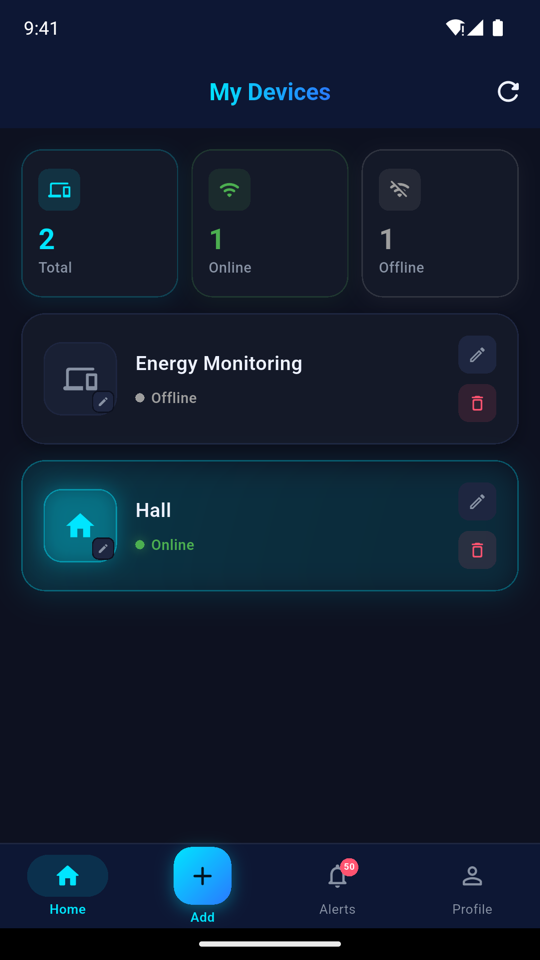
- At the top: how many devices you have, and how many are Online and Offline.
- A card per device with its name, icon and status. Tap it to open its dashboard. Use the pencil to rename it or change its icon, and the bin to remove it from your account.
- Pull down, or tap the refresh button, to update.
The bar at the bottom has Home, Add (add a device), Alerts (with the number of new ones) and Profile.
Add a device
Tap Add, scan or type the device's bar code, enter your WiFi name and password, and the app sends them to the device over Bluetooth. The full steps are in Add a device.
A device's dashboard
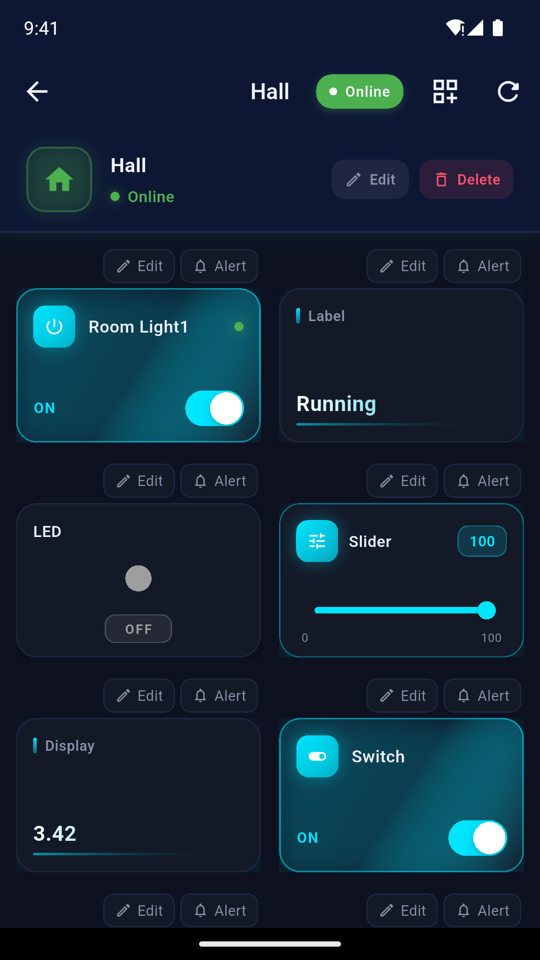
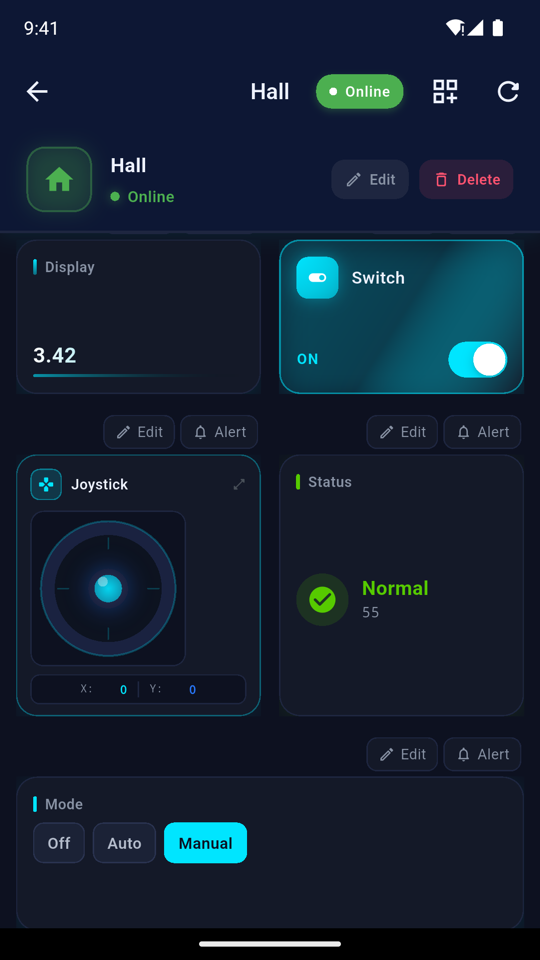
- The status at the top shows whether the device is Online.
- Widgets update live as the device sends readings. Controls (buttons, switches, sliders, selectors…) act on the device straight away.
- Edit on a widget gives it your own name and icon. Alert creates an alert rule for it.
- What each widget does is in Using widgets.
Charts and history
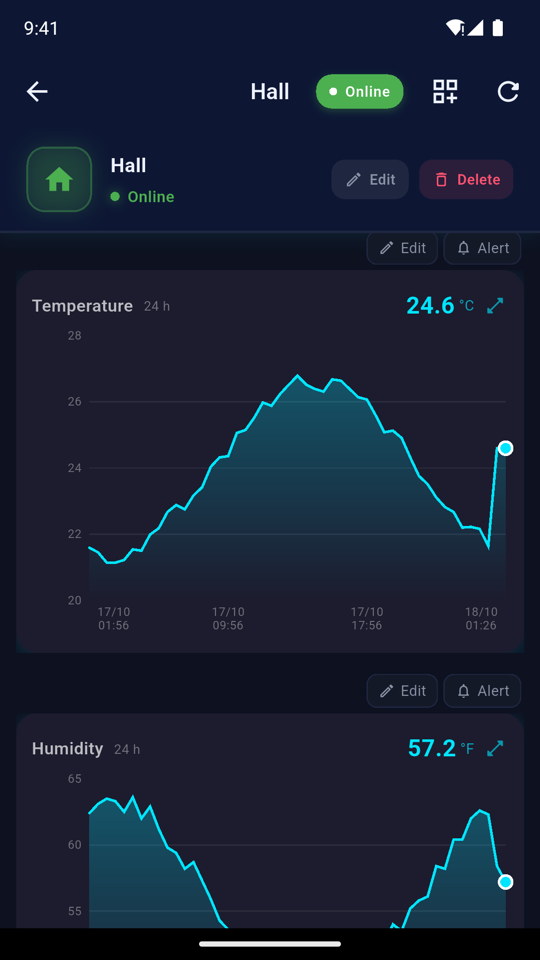
Charts show the history of a reading; choose the time range on the chart. See Charts and history.
Arrange your widgets
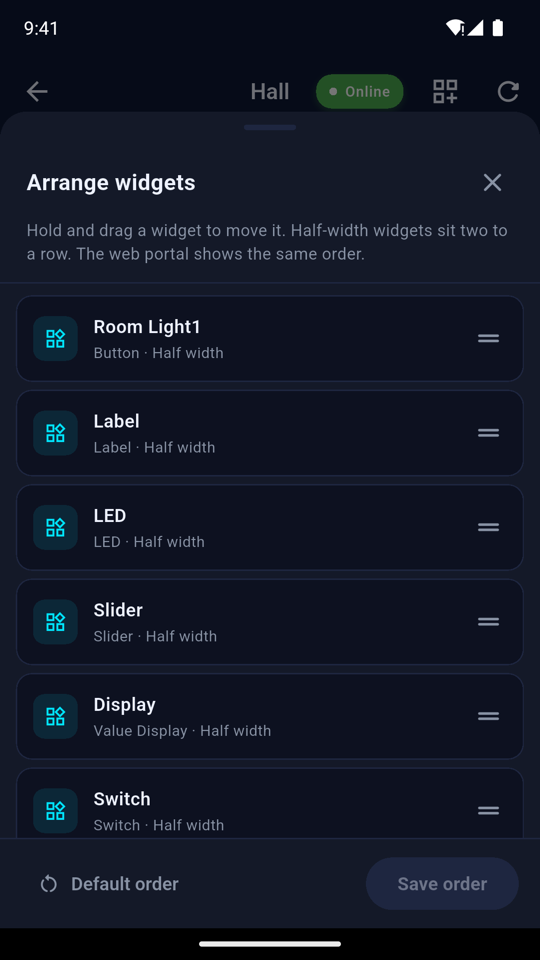
Tap the arrange button at the top of the dashboard, drag widgets into the order you want, and tap Save order. The User Portal uses the same order. See Your dashboard.
Alerts
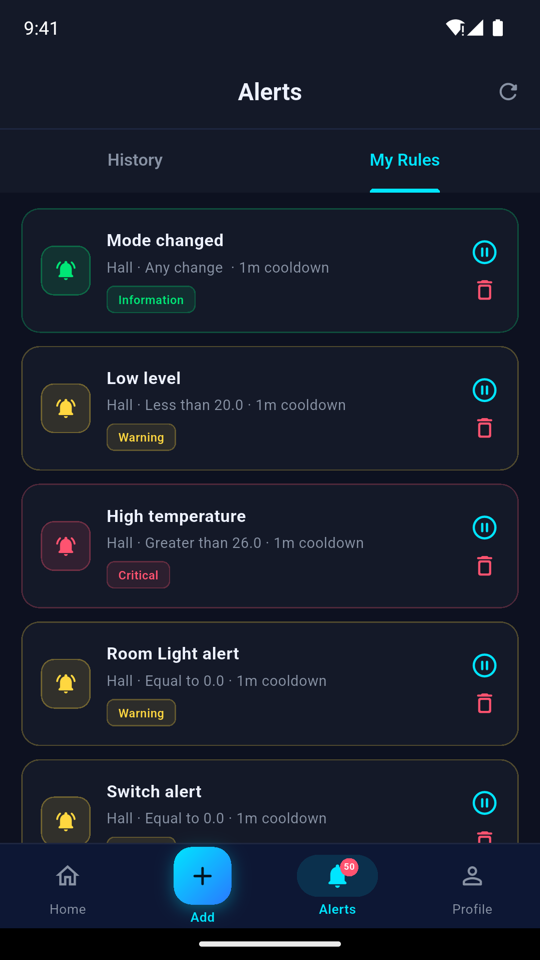
Get a notification when a reading crosses a limit, for example temperature above 35 °C. Alerts shows what happened (History) and your rules (My Rules). See Alerts.
Profile
Profile has your details, password, support tickets and feedback, and signing out. See Account settings and Support and feedback.